No. It's for lessee accounting under US GAAP (ASC 842).
Does it handle IFRS 16 or tax depreciation?
Not yet. It's US GAAP, lessee, book accounting.
Why can't I correct or delete a lease?
Its periods are in closed books. Record the change as a modification dated after the close, or ask an administrator to reopen the period. For a lease that has ended, archive it instead of deleting.
A figure on a report looks wrong. Where do I start?
Click it. The panel shows the leases and periods behind it; follow the links down to the schedule line and its inputs.
Why don't my totals match last month's report?
Something dated in that month changed after you ran it, or the books were reopened. Changes since close shows what changed and the adjusting entry to post.
Does the AI calculate my numbers?
No. The lease reader proposes inputs and Ask Crossfoot explains results; every figure is calculated by the Crossfoot engine, which is tested against the published ASC 842 examples.
Who can see my company's data?
Only the people you invite. Each company's data is separated from every other company's, and Ask Crossfoot can only reach your own leases.
How do I get help that isn't covered here?
Email hello@prosightaccounting.com.
Still stuck?
Write to us and a person will answer, usually the same day.
What's on each screen and how the pieces fit together.
Crossfoot keeps your leases, calculates every schedule with a tested ASC 842 engine, and turns the results into the journal entries and footnote tables you need at month-end. Every figure can be traced back to the lease and the formula behind it.
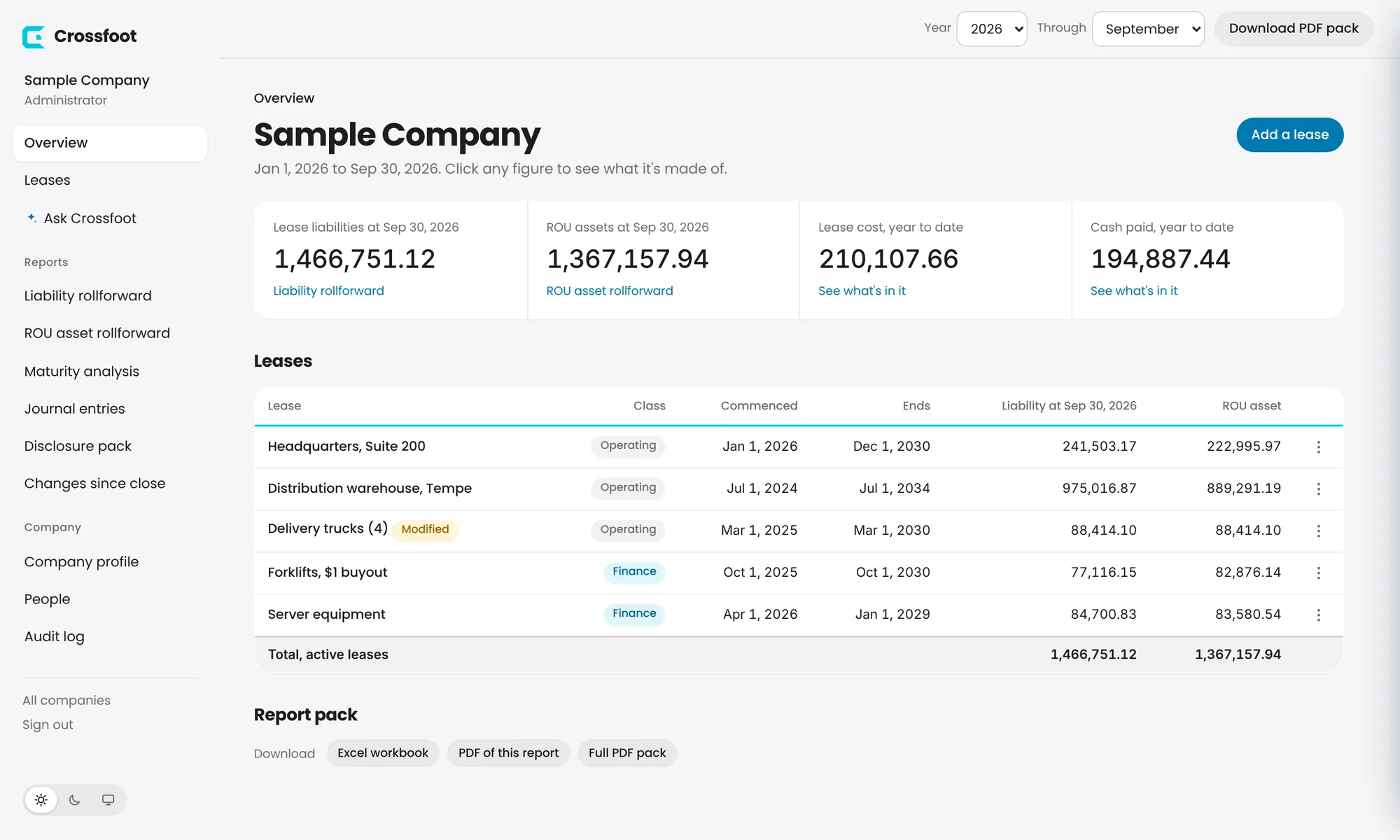
The Overview: totals for the period at the top, every lease below, downloads at the bottom.
The parts of the screen
Sidebar (left). Overview and Leases, Ask Crossfoot, the reports, and company pages (Company profile, People, Audit log). At the bottom are All companies, Sign out and the appearance switch.
Top bar. The Year and Through month set the period every page shows. Reports are year-to-date: from the start of your fiscal year to the end of the month you choose. Download PDF pack saves every report for that period in one file.
Figures you can click. Almost every number opens a panel showing how it was calculated. See Explain any number.
Pick the year and the month you're reporting through. Every page follows your choice.
A typical month
Add any new leases and record any changes (amendments, renewals, early exits).
Fiscal year, classification thresholds and policy elections, set once in Company profile.
Every lease in a company is calculated with the same settings. Set them before you add leases; changes to the thresholds only apply to leases entered or corrected afterwards.
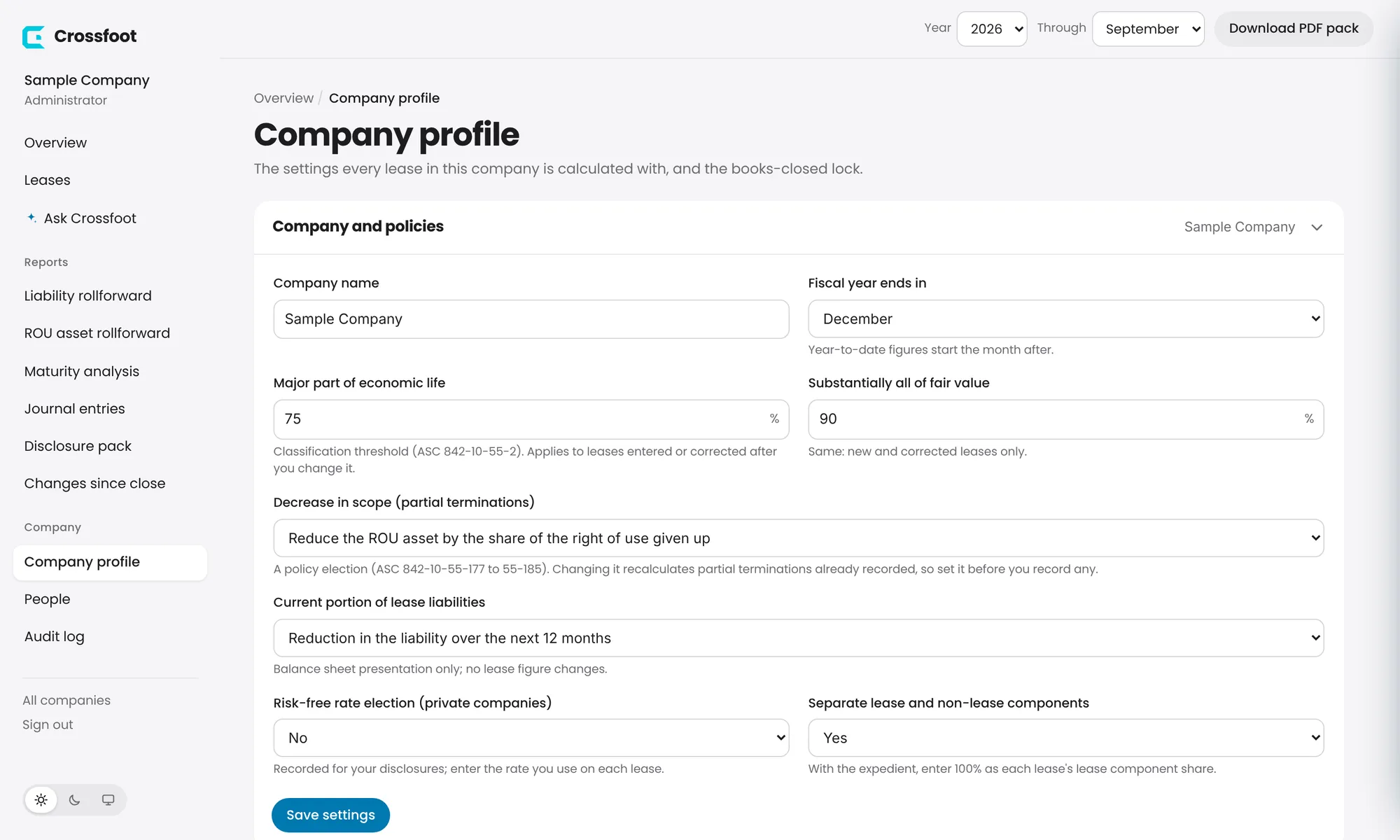
Choose Company profile in the sidebar.
Open Company and policies and fill in:
Fiscal year ends in: year-to-date figures start the month after.
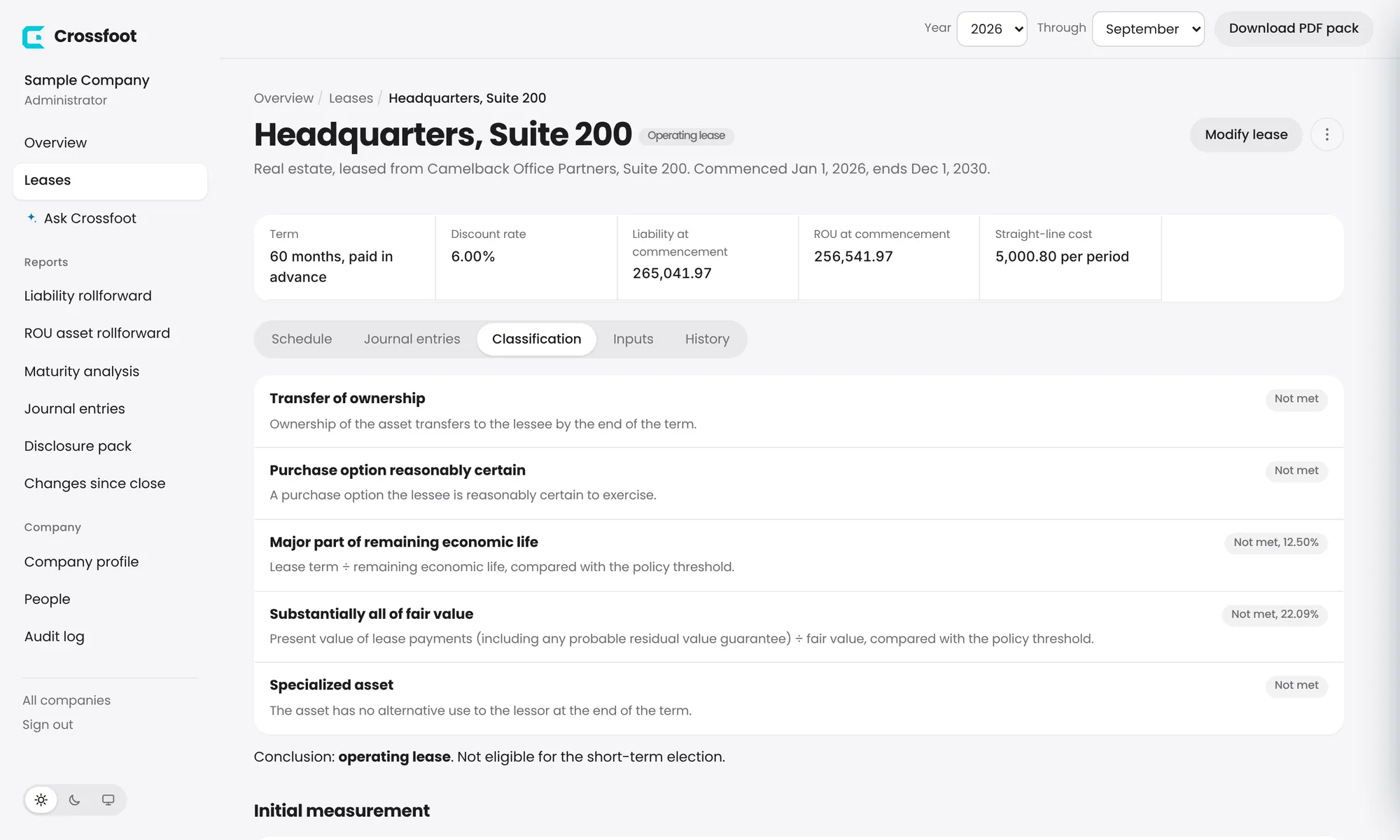
Major part of economic life and Substantially all of fair value: the classification thresholds (75% and 90% by default).
Decrease in scope: how partial terminations reduce the ROU asset (ASC 842-10-55-177 to 55-185). Choose before you record any.
Current portion of lease liabilities: the balance sheet split method.
Risk-free rate election and Separate lease and non-lease components.
Choose Save settings.
Company profile, with Company and policies open. Each section opens and closes; Crossfoot remembers which you left open.
TipOnly administrators can change these settings. Everyone else sees them read-only.
Make every journal entry use your general ledger's account names and numbers.
Journal entries, reports and exports use a standard set of account names until you change them. Enter the names and numbers from your ledger (for example 2310 · Operating lease liability) so entries can be posted as they are.
Open Company profile and expand Chart of accounts.
Fill in the accounts for operating leases (ROU asset, lease liability and its current portion, lease cost, cash) and for finance leases (ROU asset, accumulated amortization, lease liability and its current portion, interest expense, amortization expense, cash).
Choose Save accounts. Every entry, report and export updates at once, past periods included. No amount changes.
To go back to Crossfoot's names, choose Reset to defaults.
Fill in the form; the classification, schedule and checks update as you type.
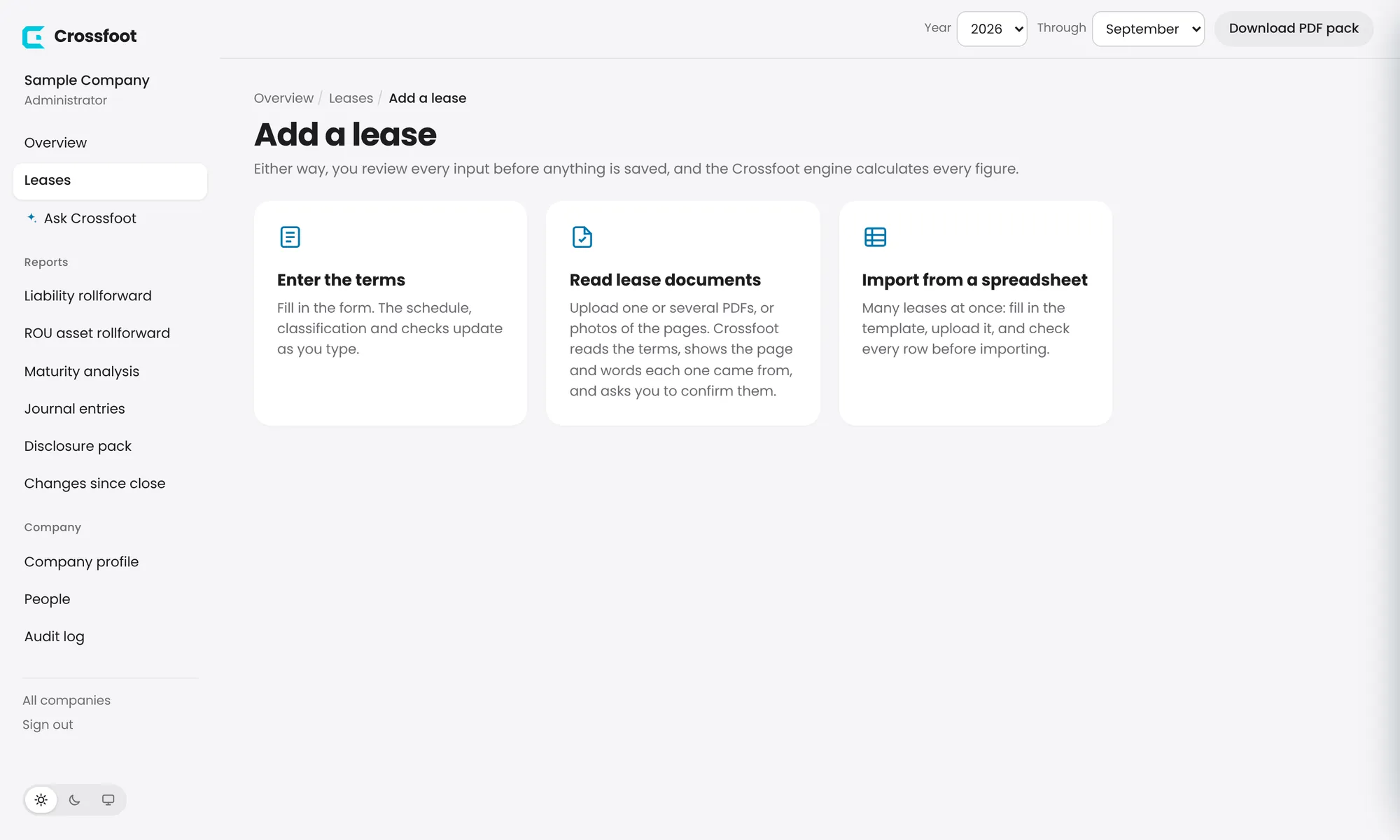
Go to Leases and choose Add a lease.
Choose Enter the terms.
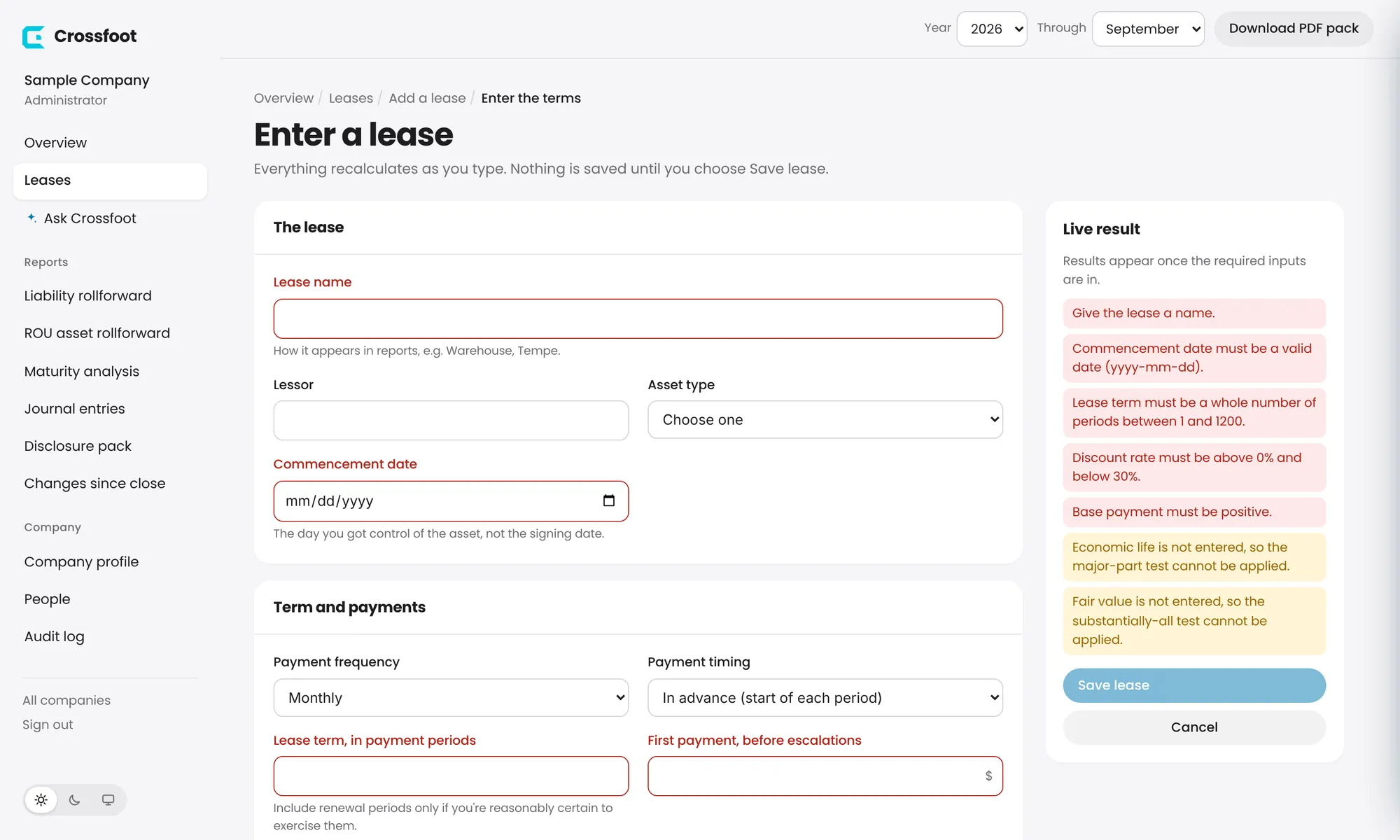
Fill in the lease: name, lessor, asset type and commencement date (the day you got control of the asset, not the signing date).
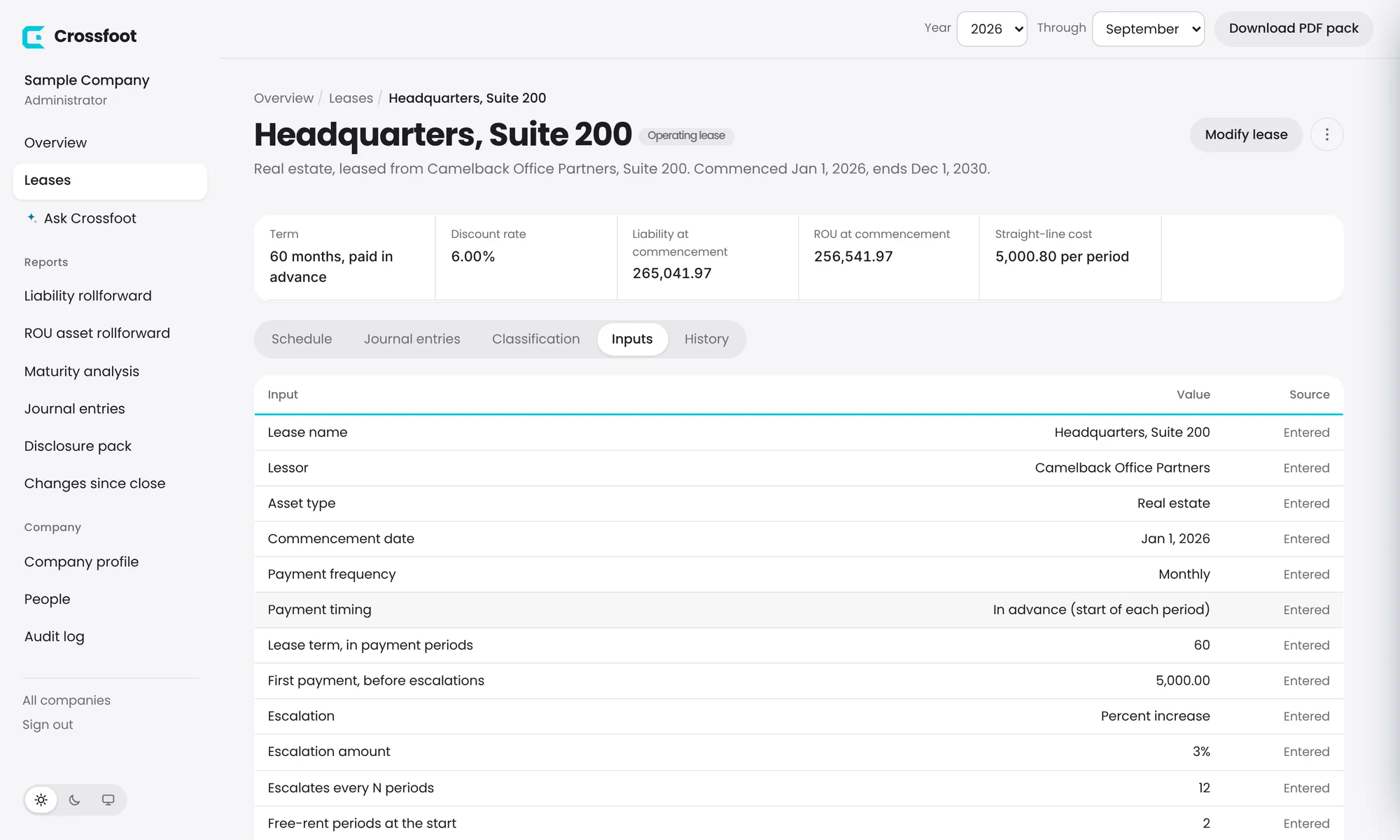
Fill in the term and payments: frequency, whether payments are in advance or arrears, the term in payment periods, the first payment and any escalation or free periods.
Add the discount rate, and the economic life and fair value of the asset if you know them (they're needed for two of the five classification tests).
Watch the Live result panel: it shows the classification, liability, ROU asset and monthly cost, plus anything still missing.
Choose Save lease.
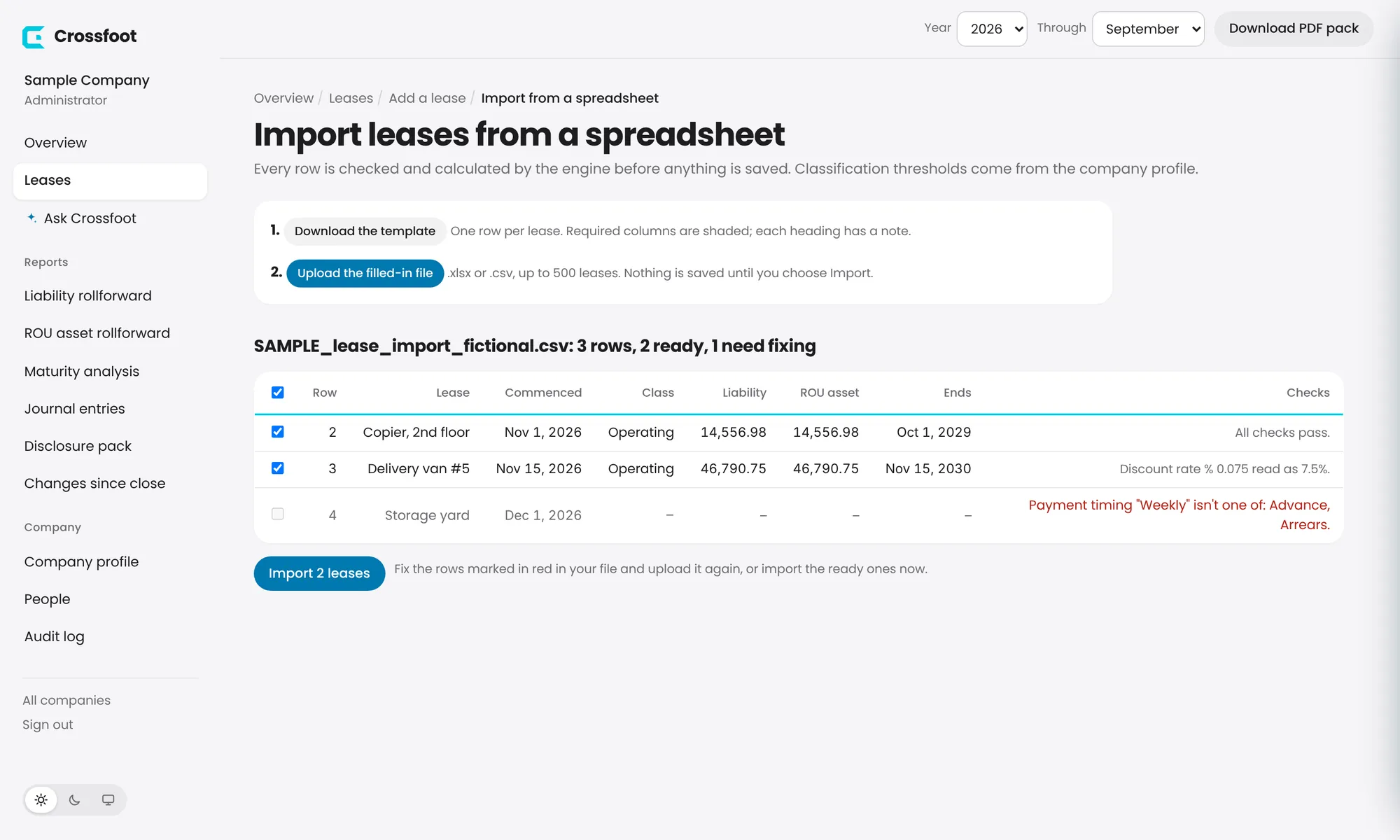
Three ways to add a lease. Whichever you choose, you review every input before anything is saved.The lease form. Red notes in the Live result panel list what's still needed.
TipInclude renewal periods in the term only if you're reasonably certain to exercise them.
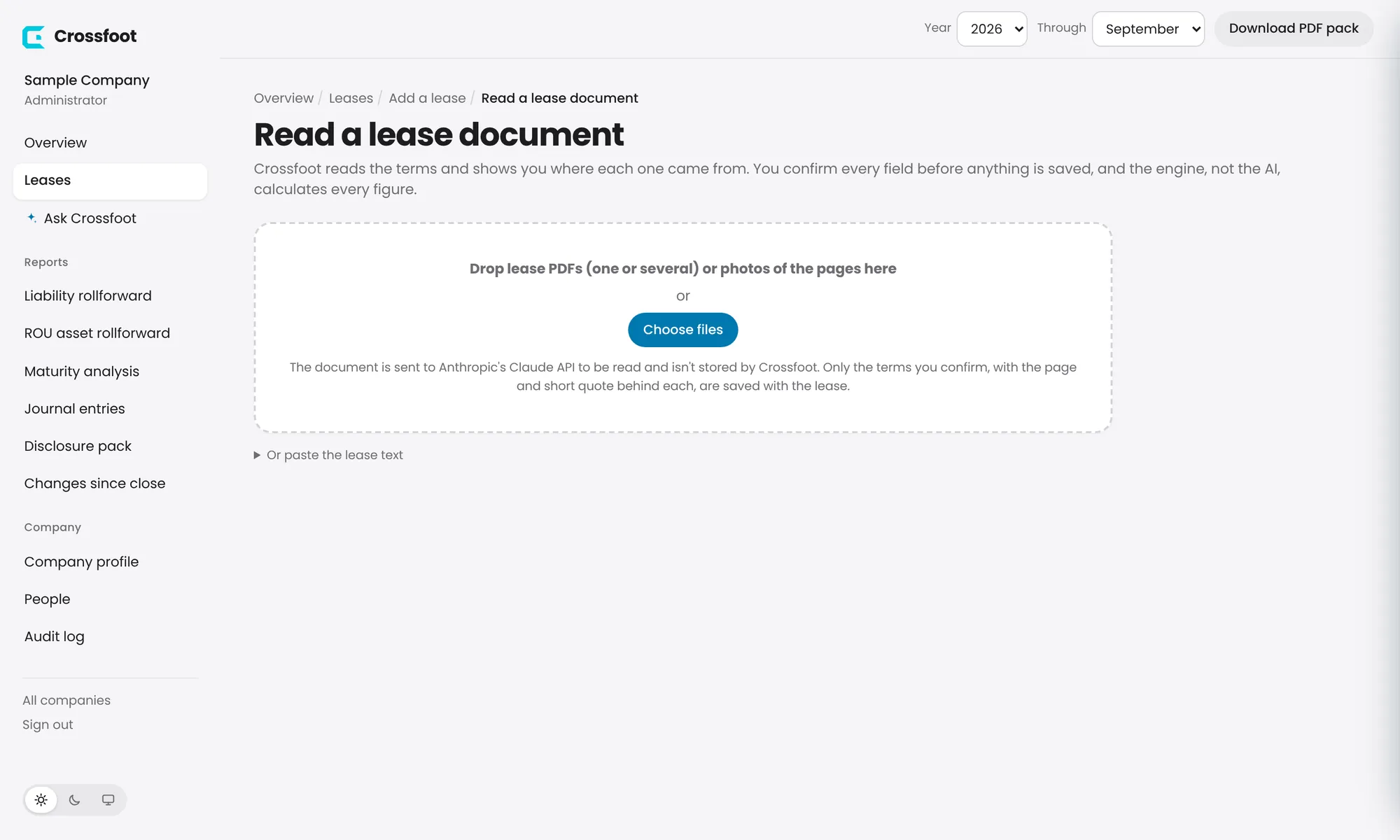
Upload a PDF or photos of the pages; confirm each term against the quote it came from.
Crossfoot can read lease agreements and fill in the form for you. It shows the page and the exact words each value came from, and leaves the judgments to you. Nothing is saved until you've checked it.
Go to Leases › Add a lease › Read lease documents.
Drop in one or more PDFs, or photos of the pages (up to 20 documents at a time). You can also paste the lease text.
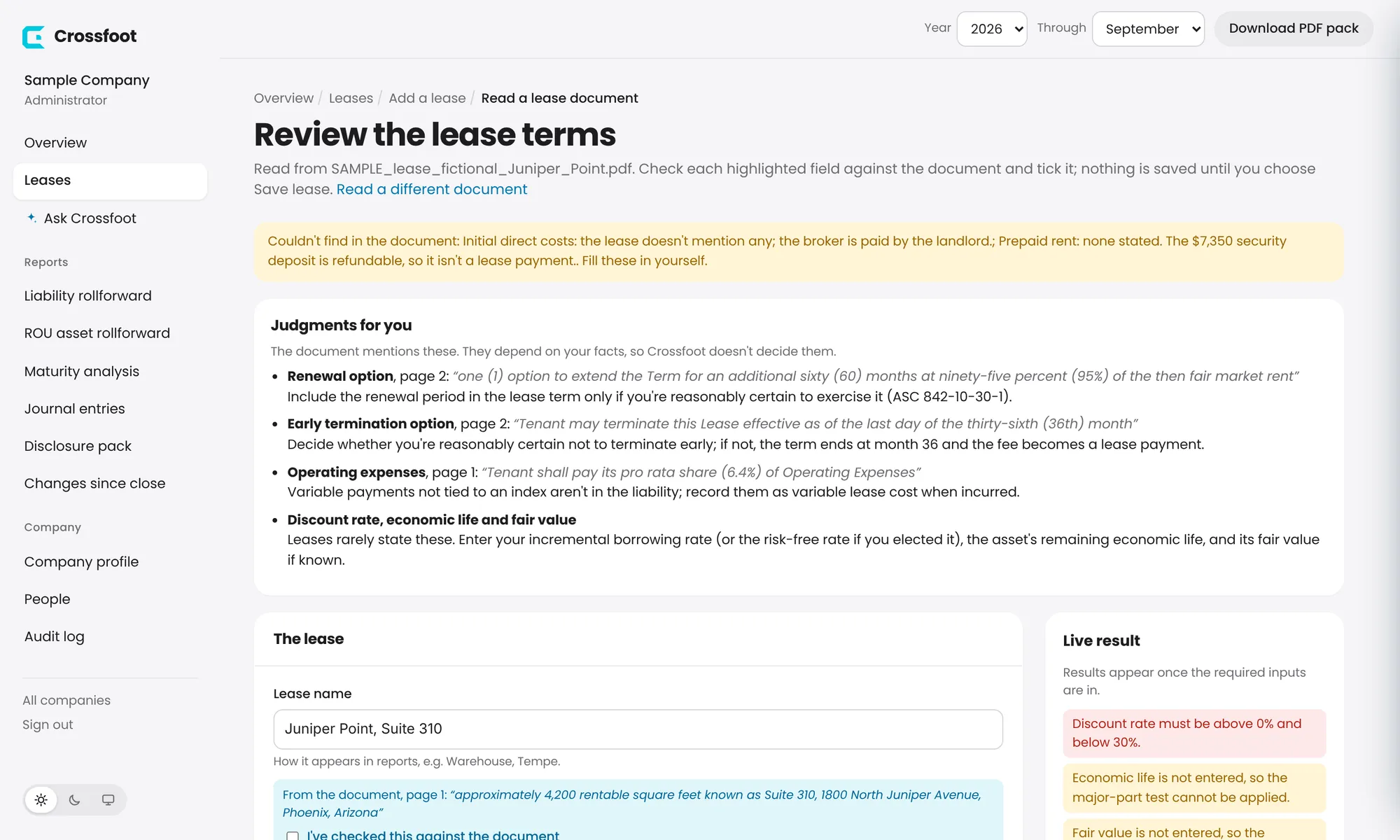
When it's read, review the form. Under each filled-in field is the quote it came from; tick I've checked this against the document.
Read Judgments for you: renewal and termination options, variable payments and anything else that depends on your facts.
Enter what leases rarely state: the discount rate, the asset's economic life and fair value.
Choose Save lease. With several documents, review each one in turn from the list.
Drop one or several lease PDFs, or choose them from your computer.The review: what Crossfoot couldn't find, the judgments it left to you, and each field with its source quote.
TipAI reads the document; it never calculates a number. Every figure comes from the Crossfoot engine once you've confirmed the inputs.
The document is sent to Anthropic's Claude API to be read and isn't stored by Crossfoot. Only the terms you confirm, with the page and short quote behind each, are saved with the lease.
The liability and ROU schedule for every period, grouped by fiscal year.
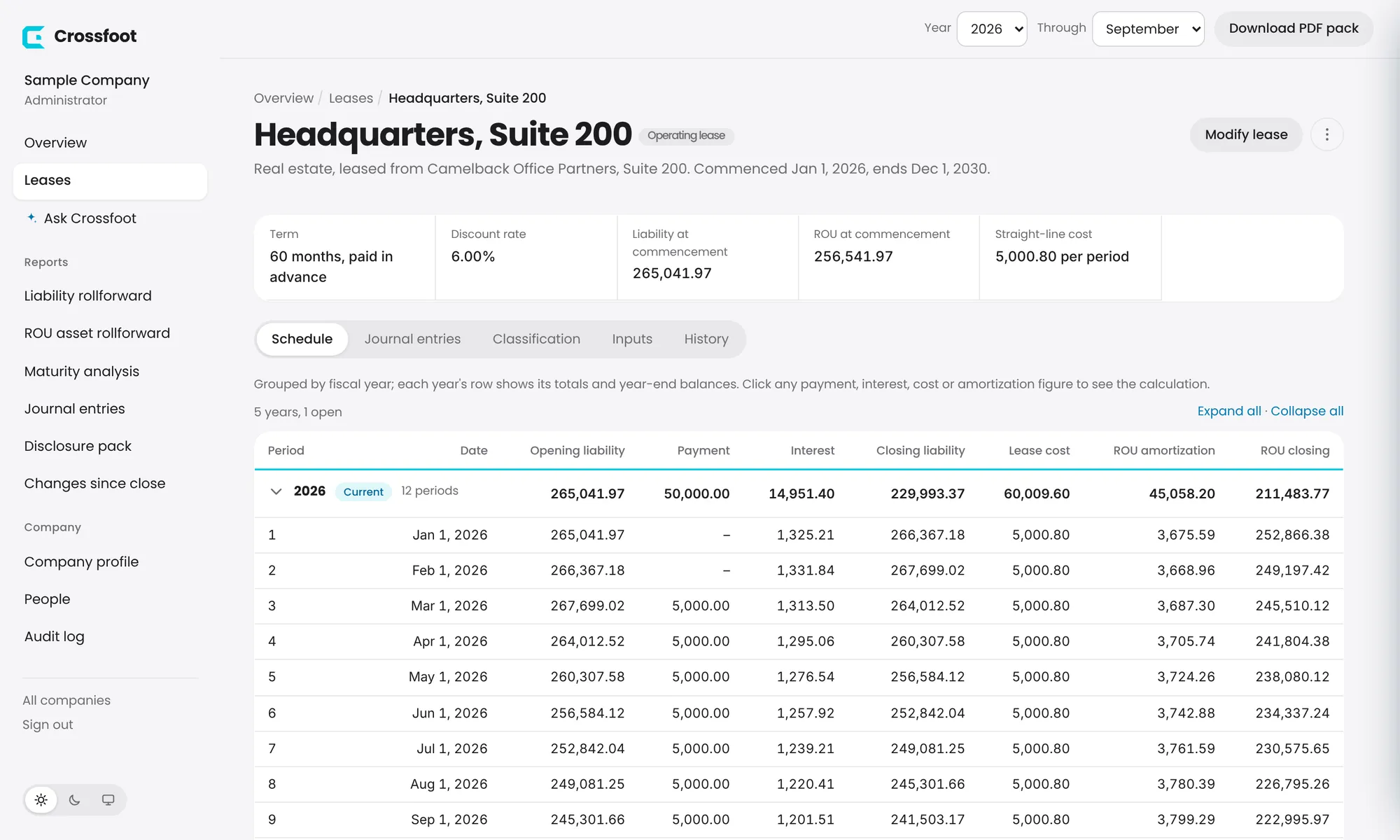
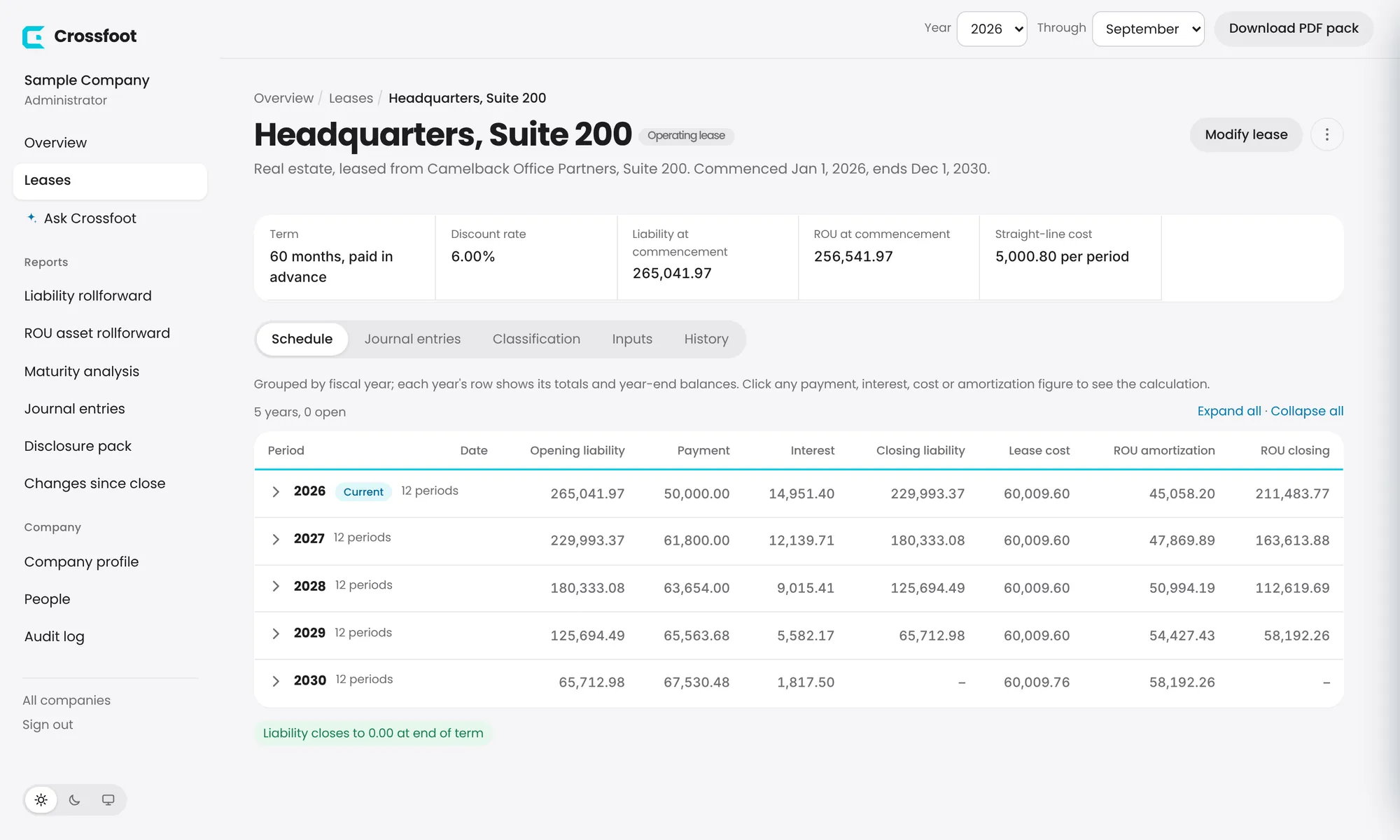
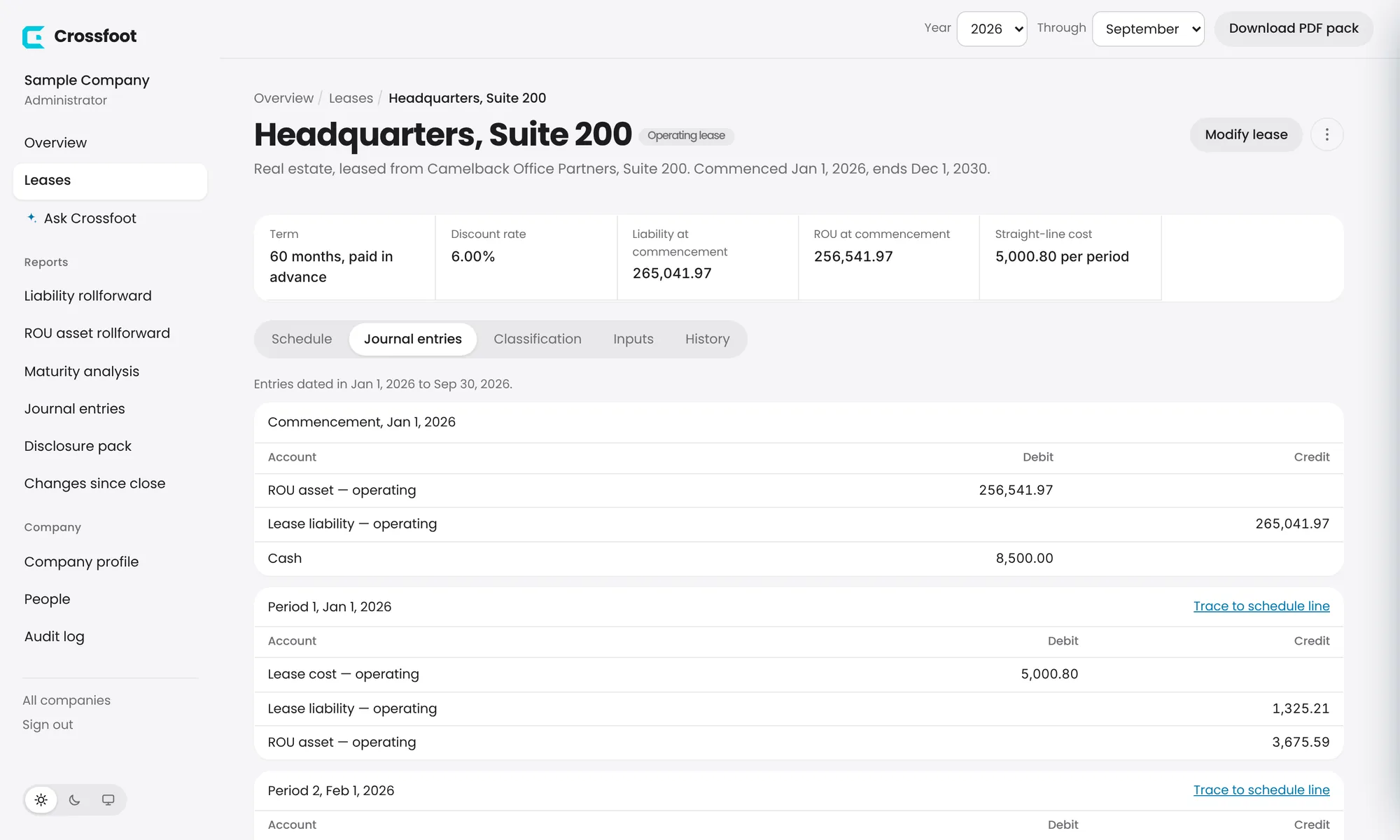
Open any lease from the Leases list. The Schedule tab shows every payment period: opening liability, payment, interest, closing liability, straight-line lease cost, ROU amortization and the ROU balance.
Periods are grouped by fiscal year. Each year's row shows its totals and year-end balances.
The year you're reporting on opens automatically and is tagged Current. Click any other year to open it.
Expand all and Collapse all are above the table. Collapsed, the schedule reads as an annual summary.
Rows after the month you've picked are shown lighter. Modifications appear as a note in the period they take effect.
The current year open, with its totals in the header row.All years collapsed: an annual summary of the whole lease.
Click a figure to see the formula, the inputs and where it came from.
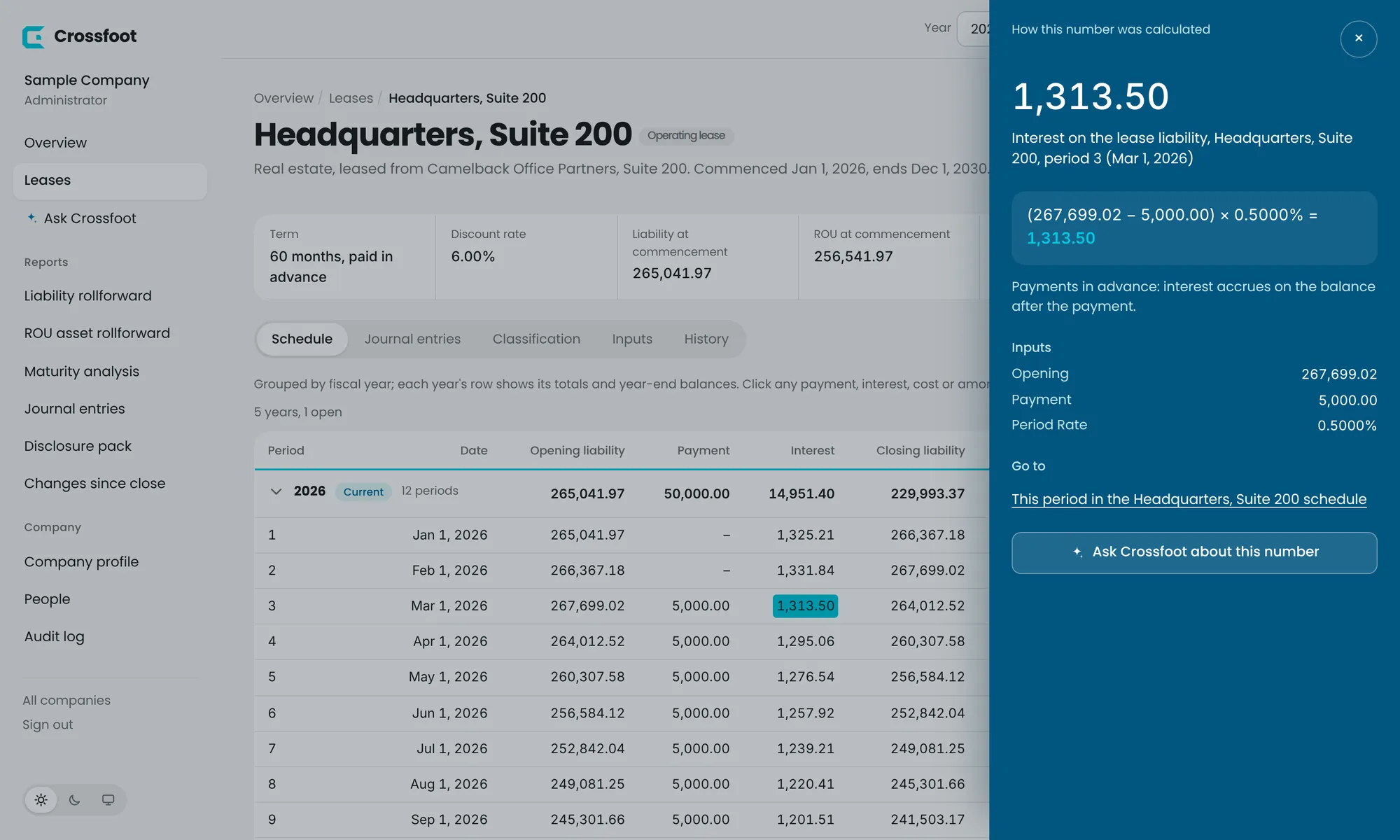
Almost every figure in Crossfoot is a link. Click one and a panel opens showing:
what the number is, and the formula with the actual values;
a plain-language note (for example, why interest accrues after the payment when rent is paid in advance);
the inputs used, and links to the lease period or the leases a total is made of.
Clicking the March interest figure shows exactly how 1,313.50 was calculated.
Totals on reports work the same way: click a total to see each lease behind it, then follow a link to the exact period in that lease's schedule. From the panel you can also ask Crossfoot about the number.
TipThis is the view auditors ask for. Click any figure in the footnote and follow it down to a single month of a single lease.
Every version of a lease, who saved it and what it changed.
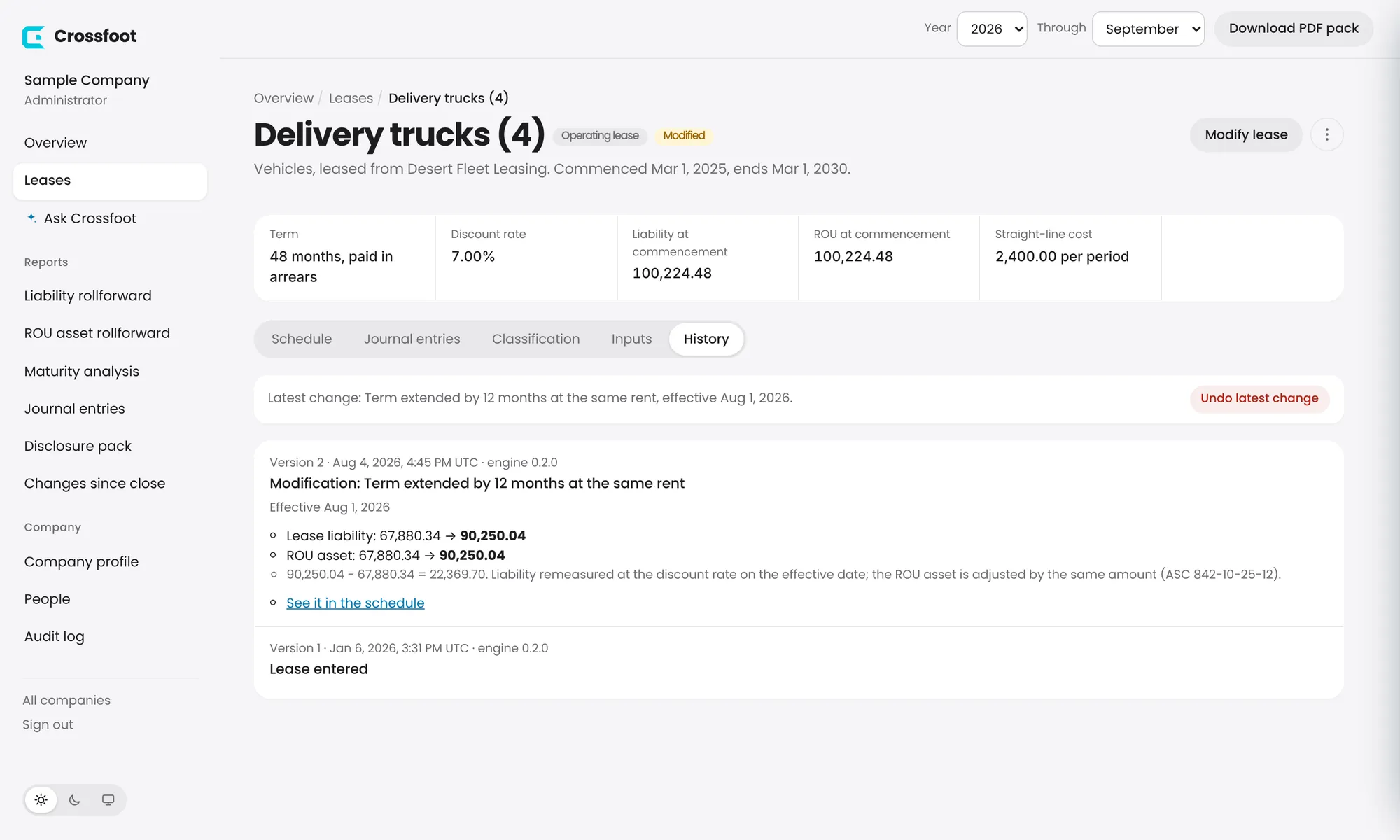
The History tab lists every version of the lease, newest first: when it was entered, each correction, modification, undo and restore, who saved it, and the engine version used. Modifications show the liability and ROU asset before and after, with a link to the period in the schedule.
A lease with a modification. The banner at the top offers to undo the latest change.
Versions are never overwritten. A correction or undo adds a new version, so the full record stays.
Extensions, rent changes, added or returned space, early terminations and more.
Use Modify lease when the lease's terms actually change: an amendment, a renewal, an early exit. Periods before the effective date stay exactly as reported.
Open the lease and choose Modify lease.
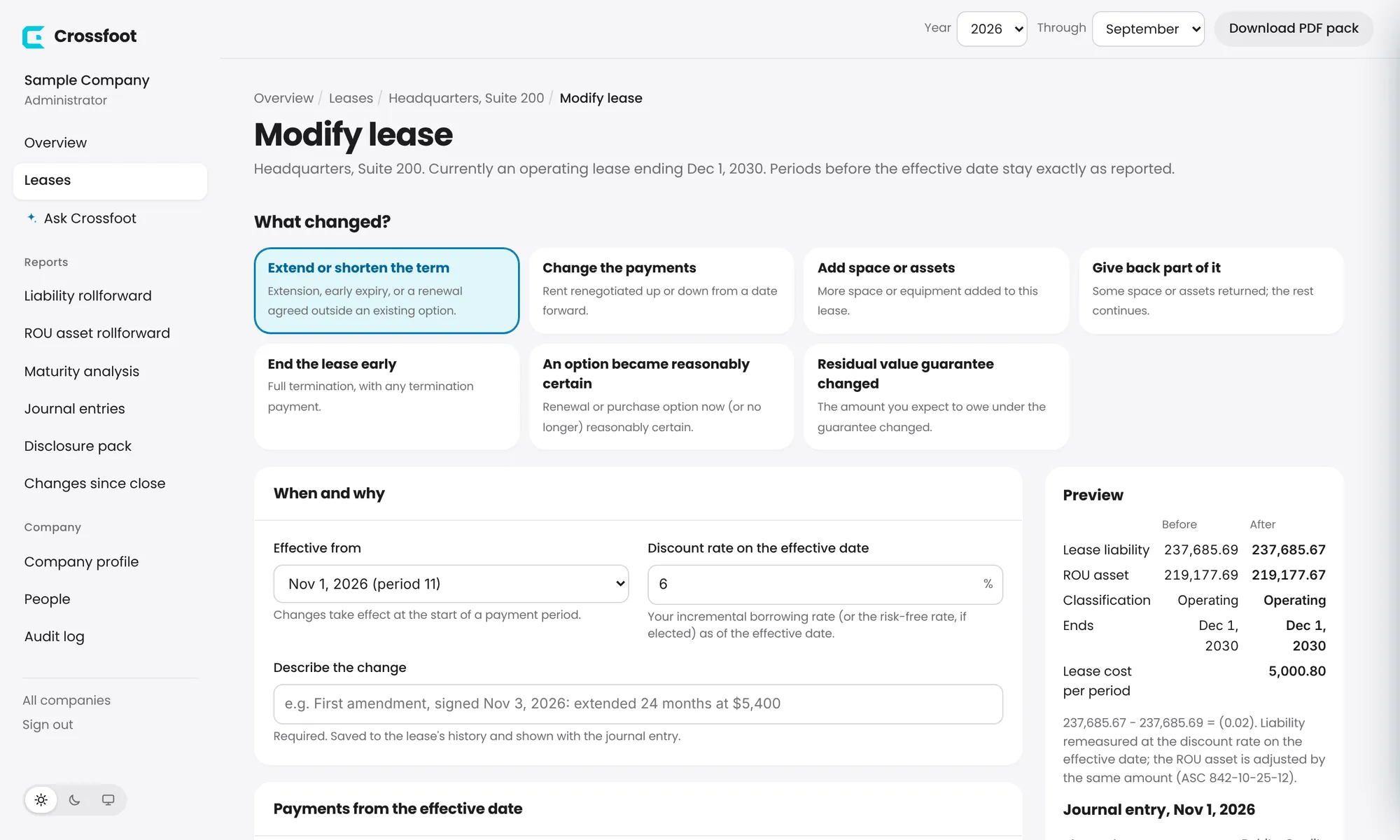
Choose what changed: Extend or shorten the term, Change the payments, Add space or assets, Give back part of it, End the lease early, An option became reasonably certain, or Residual value guarantee changed.
Under When and why, choose the effective period, enter the discount rate on that date, and describe the change (for example the amendment and its signing date).
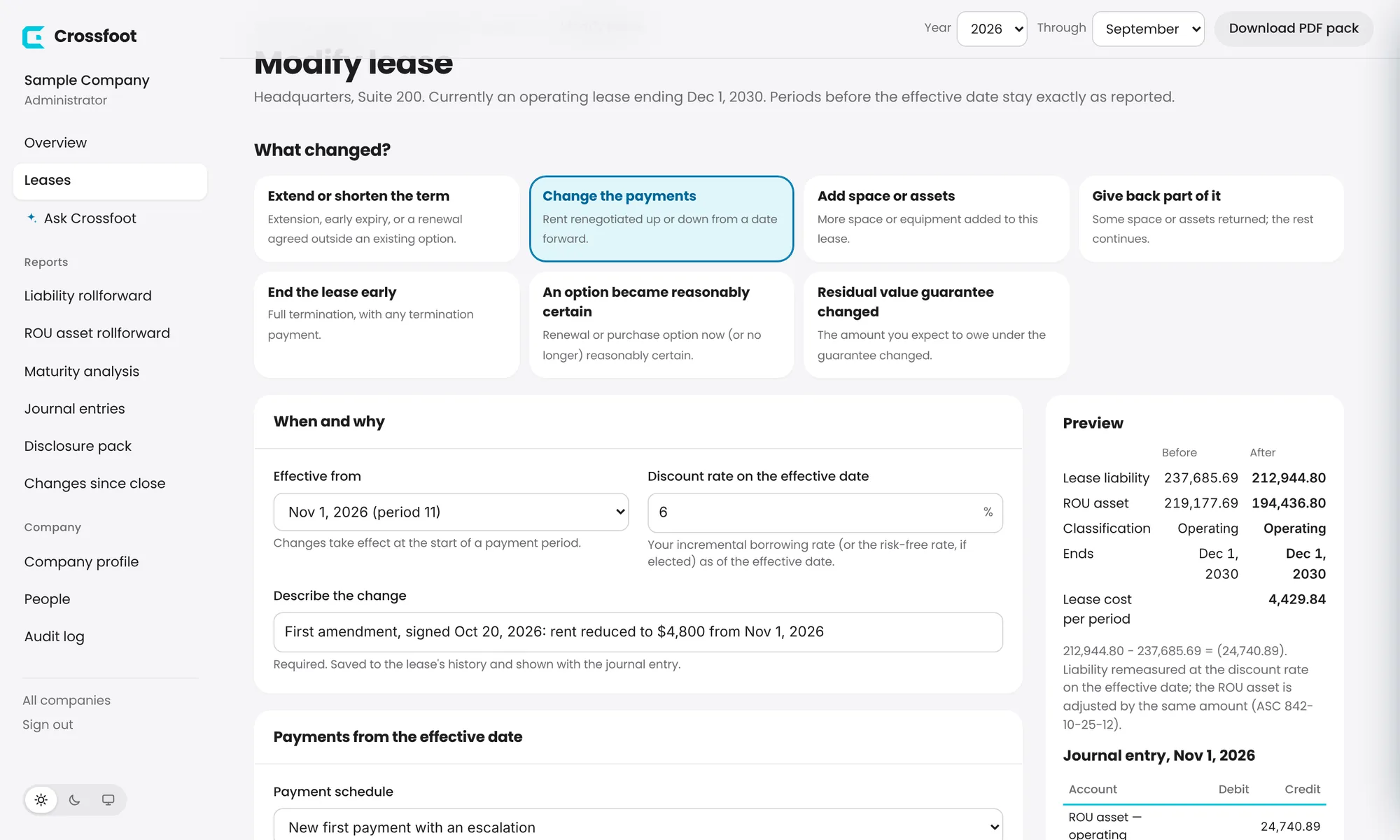
Enter the new terms. For payments, keep the current ones, enter a new first payment with an escalation, or enter the payments in steps.
Check the Preview: the liability, ROU asset, classification, end date and lease cost before and after, the explanation, and the journal entry for the change.
Choose Apply change.
Choose what changed. Each option explains when to use it.A rent change: the preview shows the remeasurement and the journal entry before anything is saved.
TipIf the change adds a right of use priced at its standalone price, Crossfoot asks whether it's a separate lease and can add it as a new lease instead.
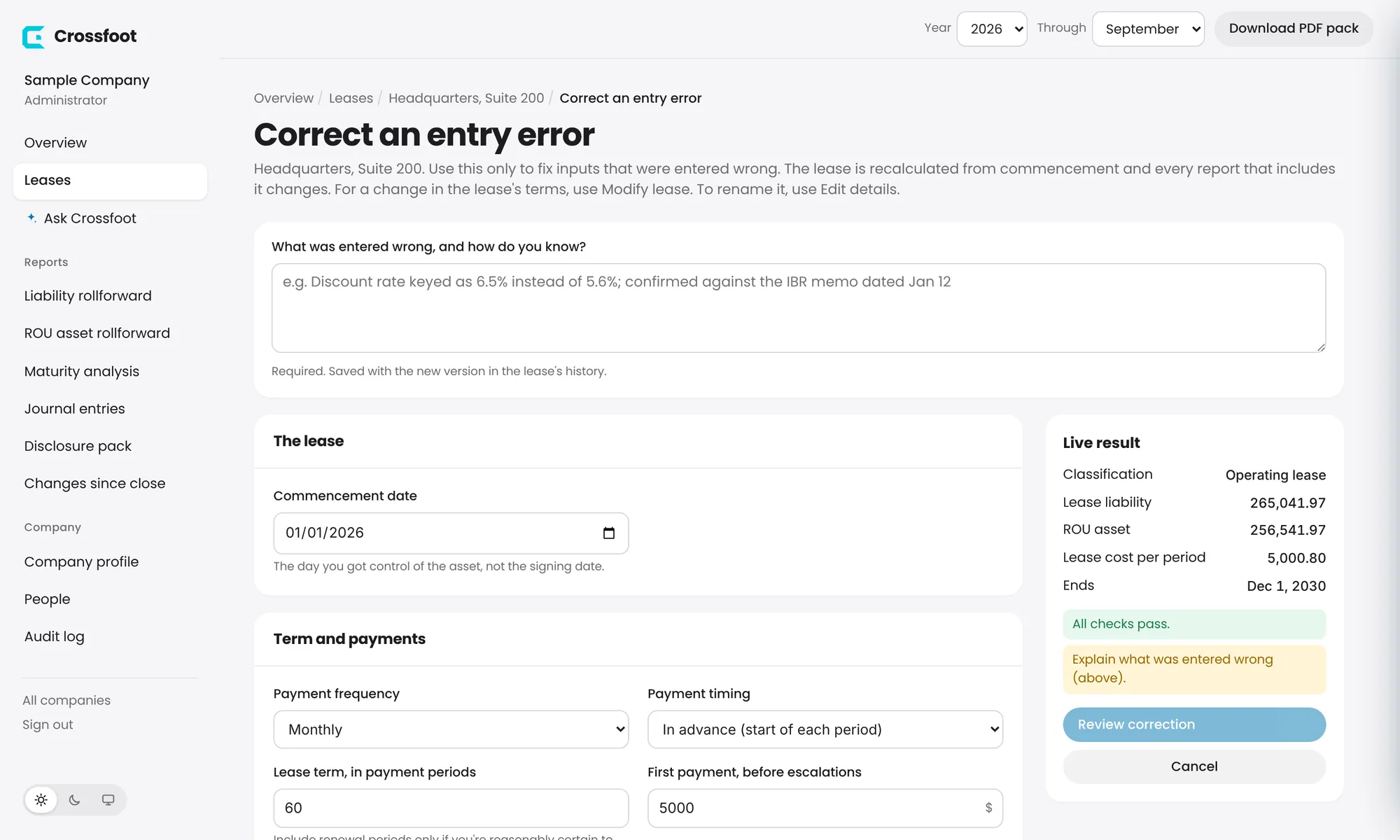
Fix an input that was entered wrong, with a logged reason.
Use Correct an entry error only when something was keyed wrong, such as a discount rate entered as 6.5% instead of 5.6%. The lease is recalculated from commencement, and every report that includes it changes. For a change in the lease's terms, use Modify lease; to rename it, use Edit details.
Open the lease, choose the ⋮ menu and Correct an entry error.
Explain what was wrong and how you know. This is saved with the new version.
Fix the inputs. The Live result shows the corrected figures.
Choose Review correction, check what changes, then Apply correction.
Correcting an entry: the reason is required and saved in the lease's history.
TipOnce a lease has periods in closed books, corrections are locked. Record the change as a modification instead, or ask an administrator to reopen the period.
Take back the latest modification, or return a lease to any earlier version.
Undo the latest change
On the lease's History tab, the banner at the top shows the latest change with an Undo latest change button. Undoing adds a new version; nothing is deleted. A change that falls in closed books can't be undone.
Restore an earlier version (administrators)
On the History tab, find the version you want and choose Restore this version.
Review what changes: the inputs, the modifications removed or brought back, and the effect on today's balances.
Say why you're restoring it, type restore and confirm.
The restore is saved as a new version showing which version it brought back and what it did to the liability and ROU asset. If the first date that changes is in closed books, reopen the period first.
The lease menu, and when to archive instead of delete.
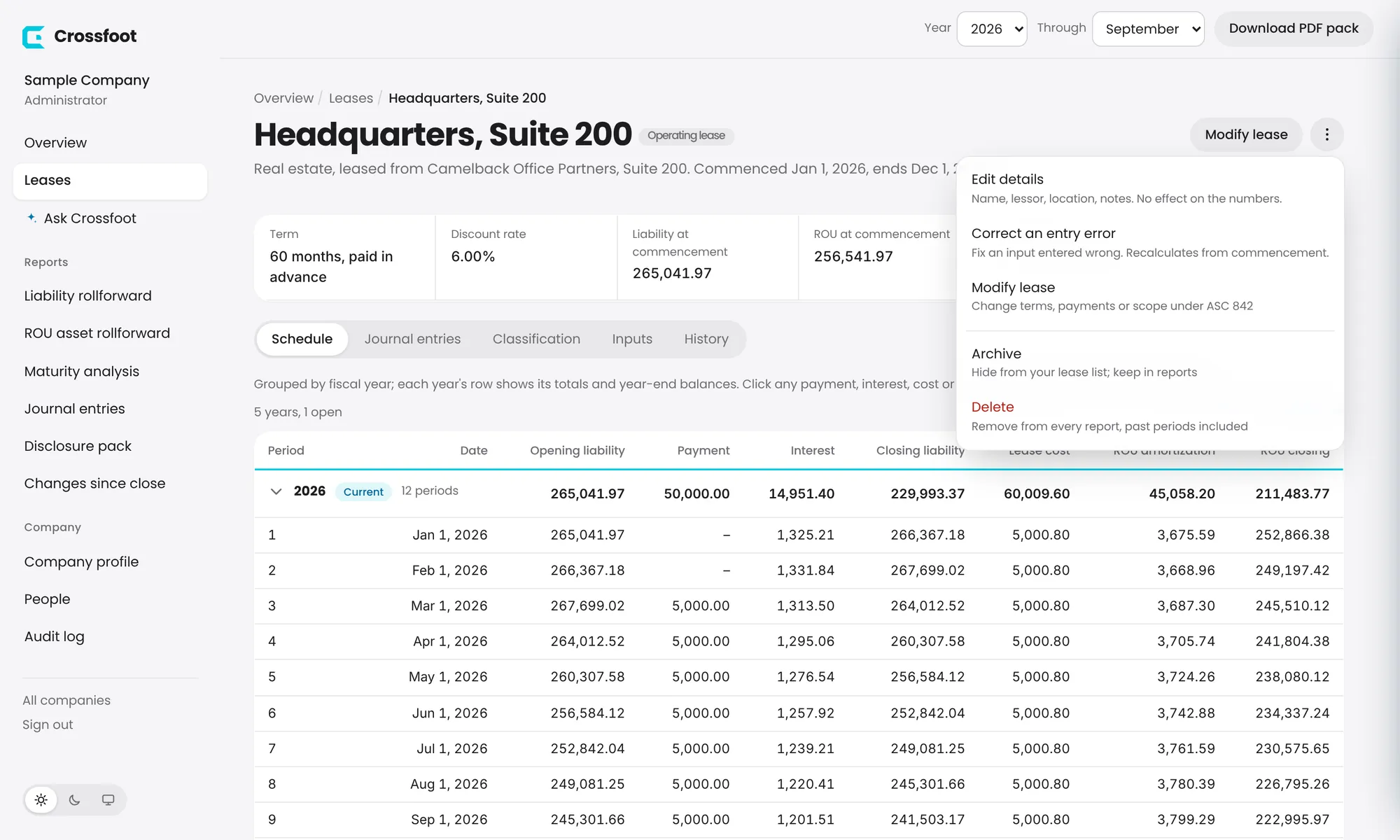
Every lease has a ⋮ menu, on the lease page and on each row of the Leases list.
The lease menu. Options that don't apply are shown greyed out with the reason.
Edit details: name, lessor, location, reference and notes. No effect on the numbers.
Archive: hides the lease from your list but keeps it in every report. Recommended for leases that have ended. Restore from archive brings it back.
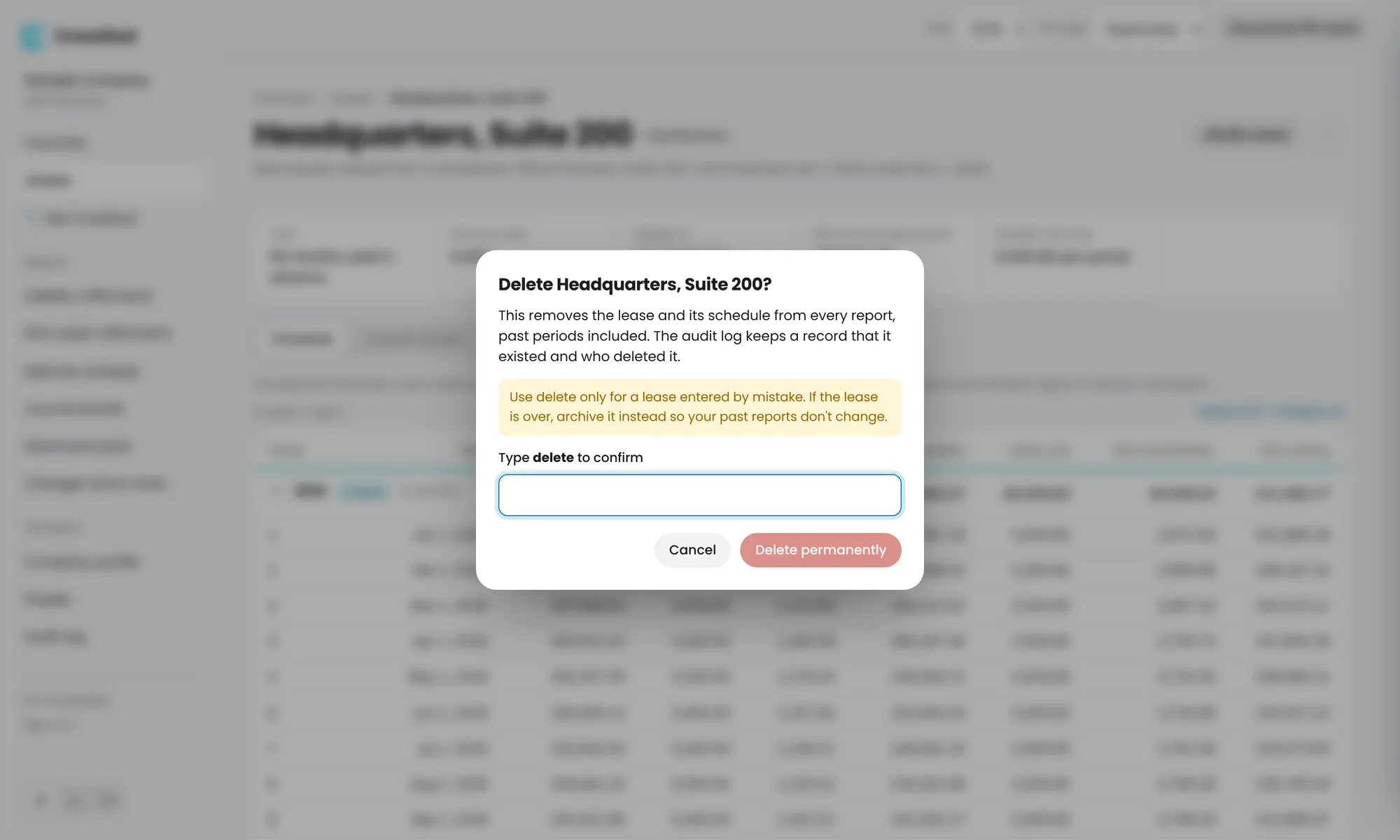
Delete: removes the lease from every report, past periods included. Use it only for a lease entered by mistake. You type delete to confirm, and the audit log keeps a record.
Deleting asks you to confirm and suggests archiving instead.
TipA lease with periods in closed books can't be deleted. Archive it instead.
Opening balance, activity and closing balance for every lease, year to date.
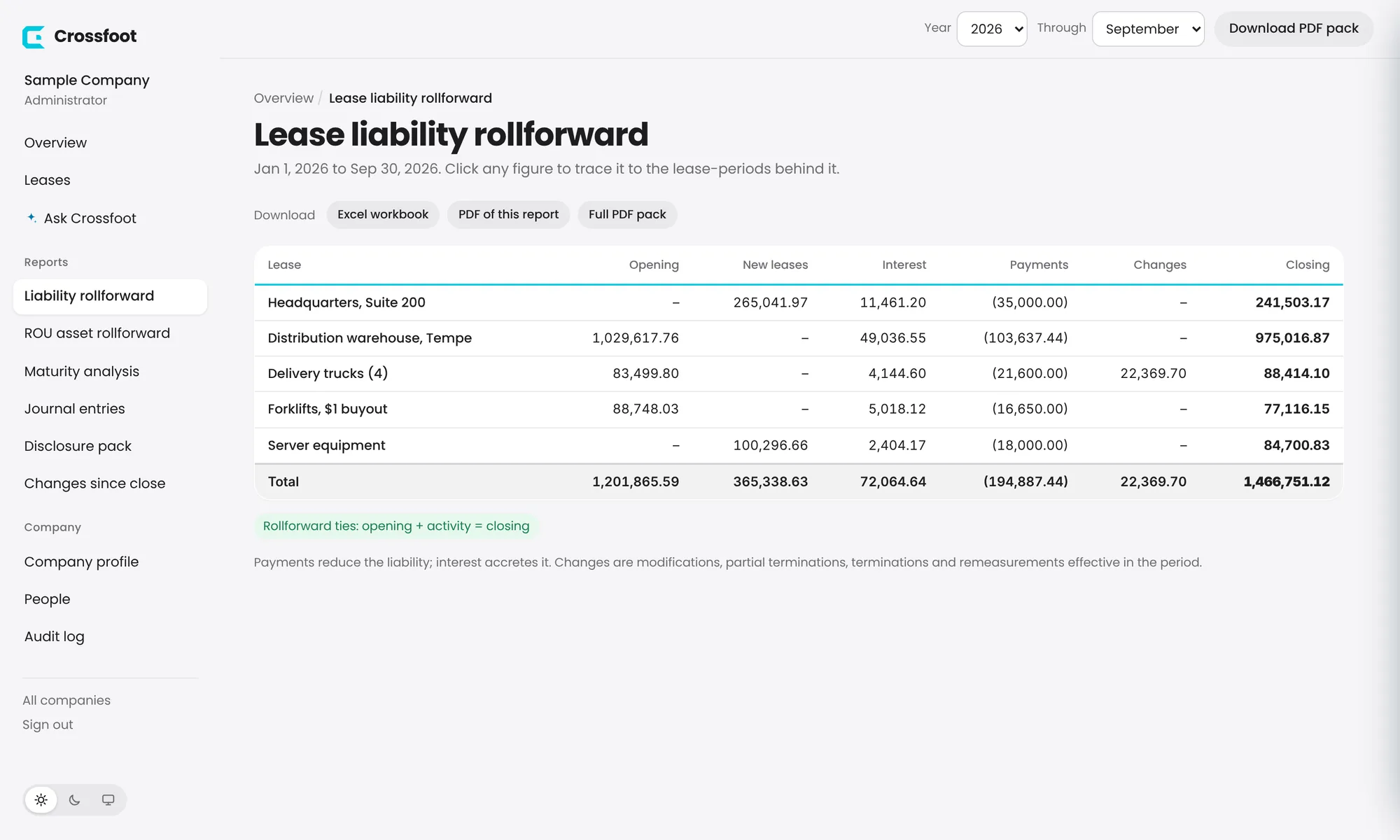
Choose Liability rollforward or ROU asset rollforward in the sidebar. Each lease shows its opening balance, new leases, interest (or amortization), payments, changes and closing balance for the period in the top bar.
The liability rollforward ties: opening plus activity equals closing.
The green check confirms the report ties. Click any figure to trace it to the lease periods behind it.
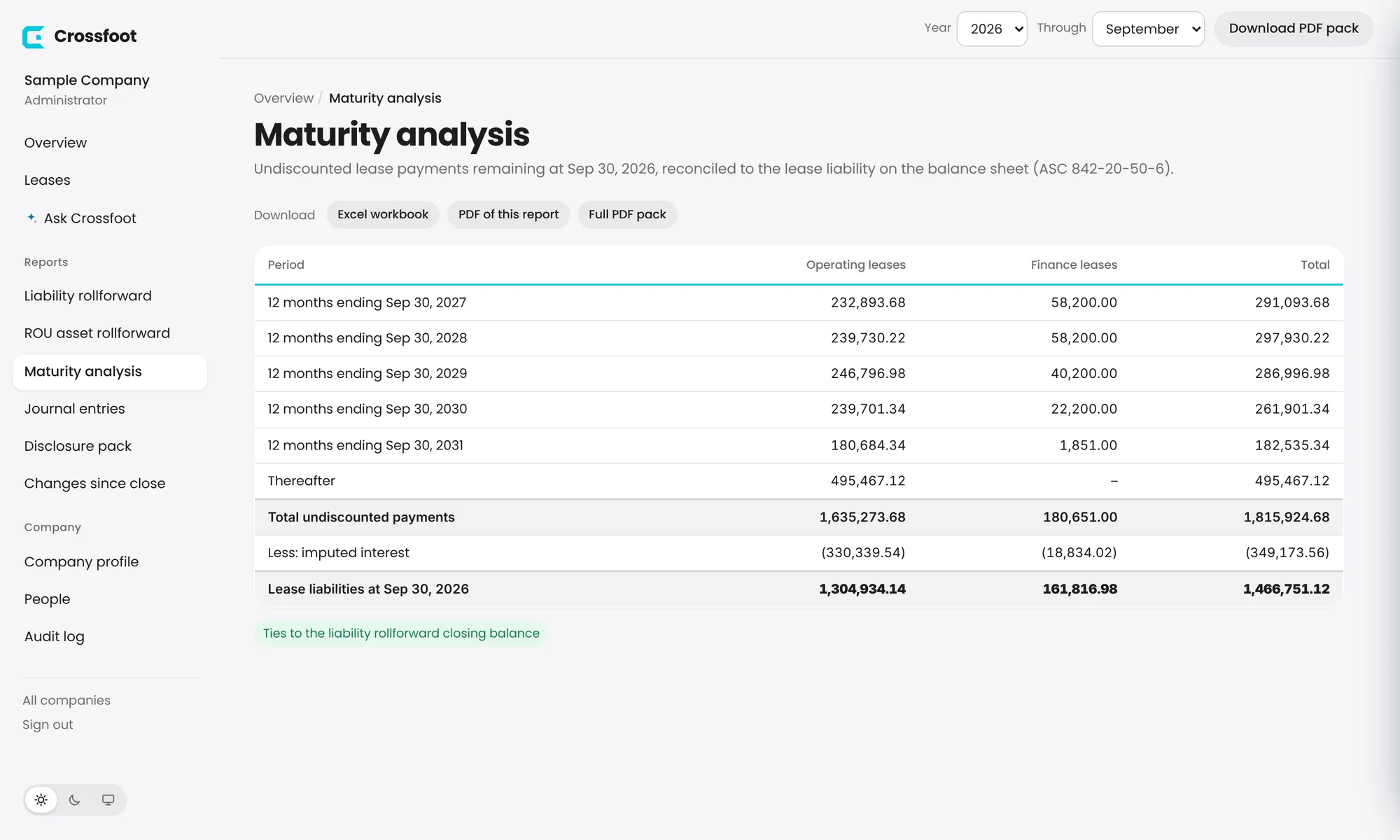
Undiscounted payments by year, reconciled to the lease liability.
Maturity analysis shows the undiscounted lease payments remaining at the end of your period, in 12-month buckets and "Thereafter", for operating and finance leases. Imputed interest is deducted to reconcile to the lease liability on the balance sheet (ASC 842-20-50-6).
The maturity table ties to the liability rollforward's closing balance.
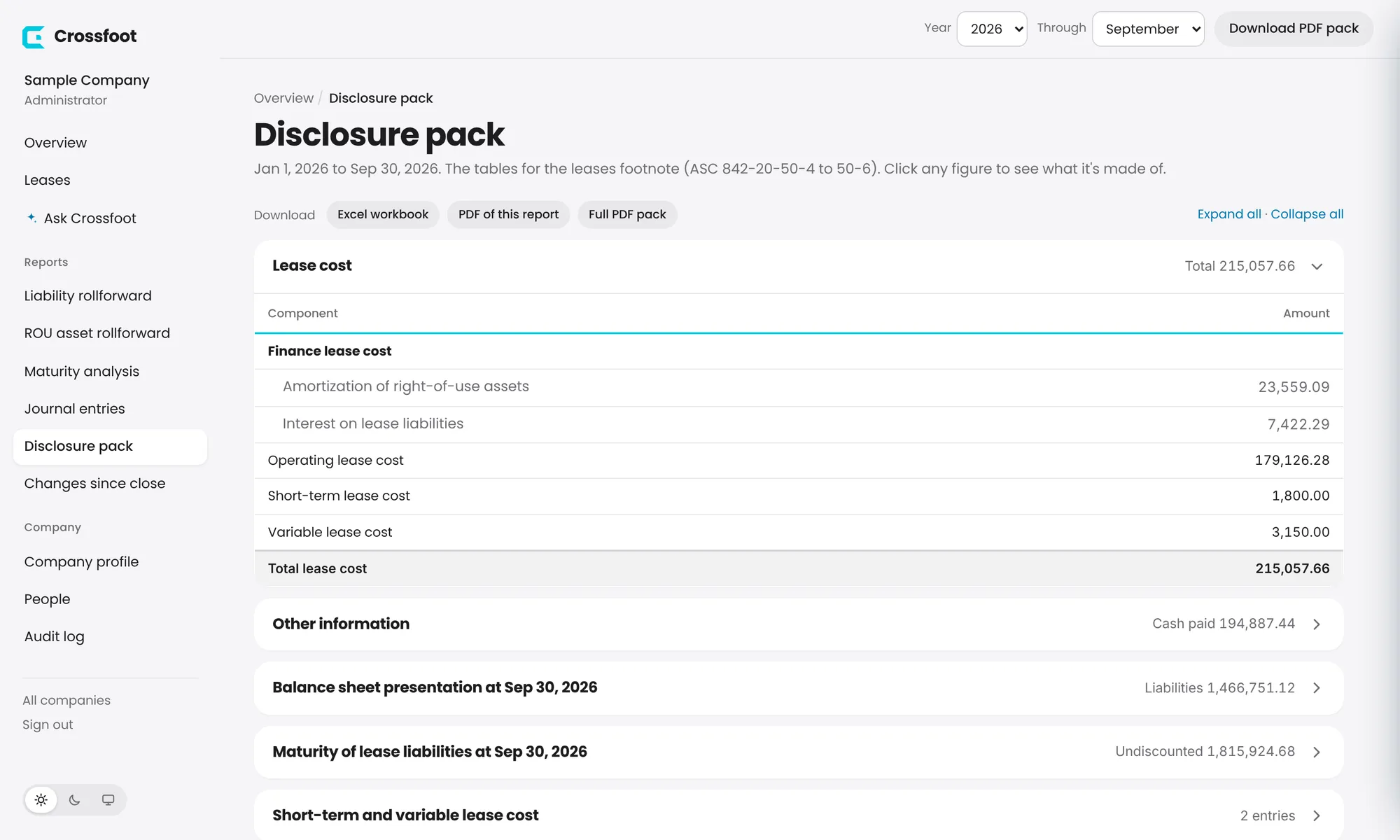
The tables for the leases footnote, every figure traceable.
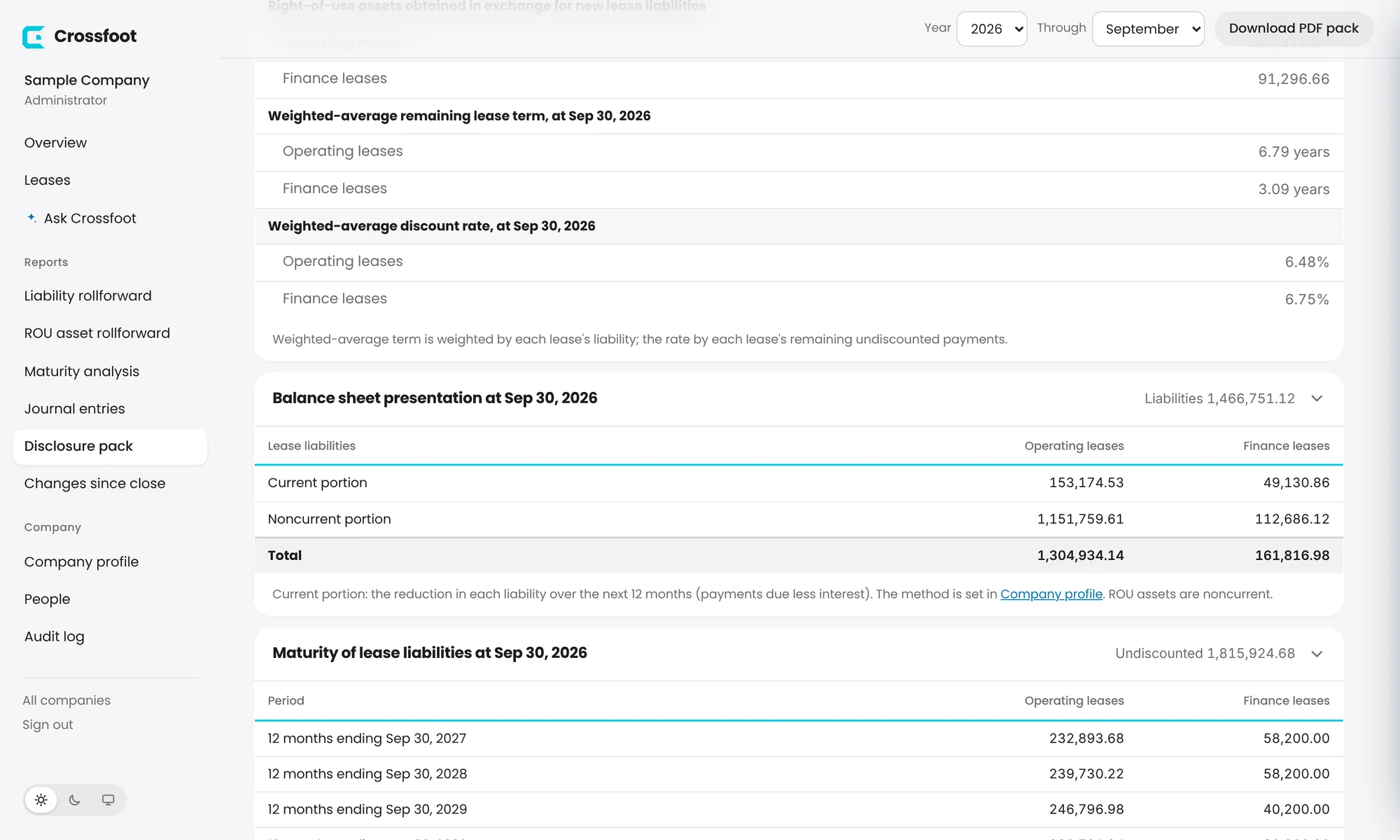
The Disclosure pack has the tables for your leases footnote (ASC 842-20-50-4 to 50-6), each in its own section with its key figure in the header:
Lease cost: finance lease amortization and interest, operating, short-term and variable lease cost.
Other information: cash paid, ROU assets obtained for new liabilities, weighted-average remaining term and discount rate.
Balance sheet presentation: current and noncurrent lease liabilities.
Maturity of lease liabilities.
Short-term and variable lease cost: costs that aren't in any schedule, such as CAM true-ups or short-term rentals. Add them here with the date, type and amount.
Each section opens and closes. Its key figure shows in the header even when closed.Expand all to review every table at once.
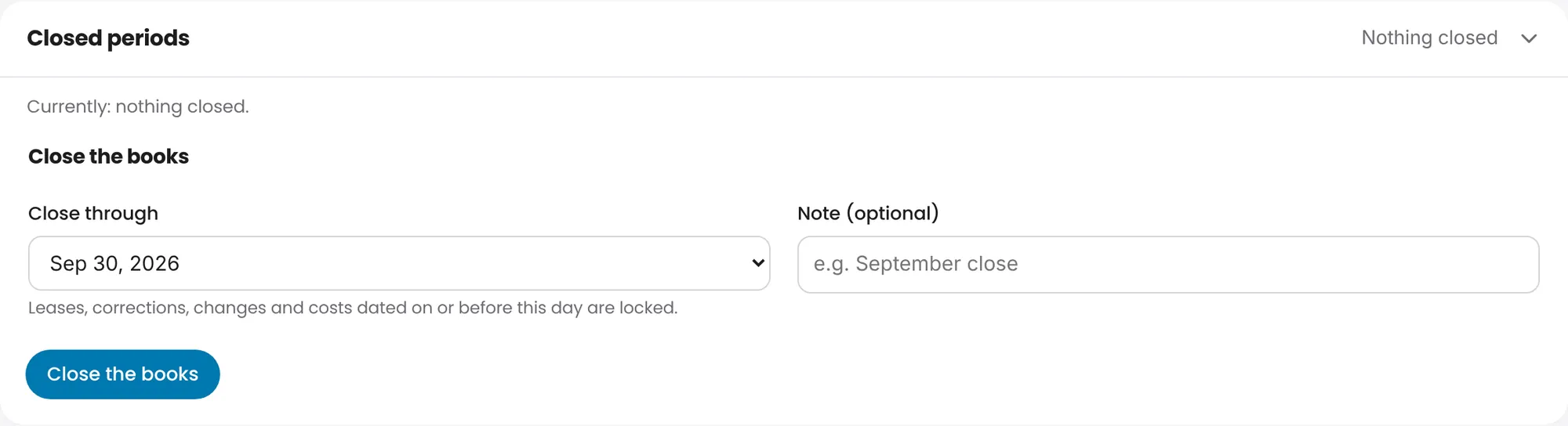
Closing locks everything dated on or before the date you choose: leases, corrections, changes and costs. Administrators and reviewers can close.
Open Company profile and expand Closed periods.
Under Close the books, choose the month-end to close through and add an optional note (for example "September close").
Choose Close the books.
Close the books through a month-end.
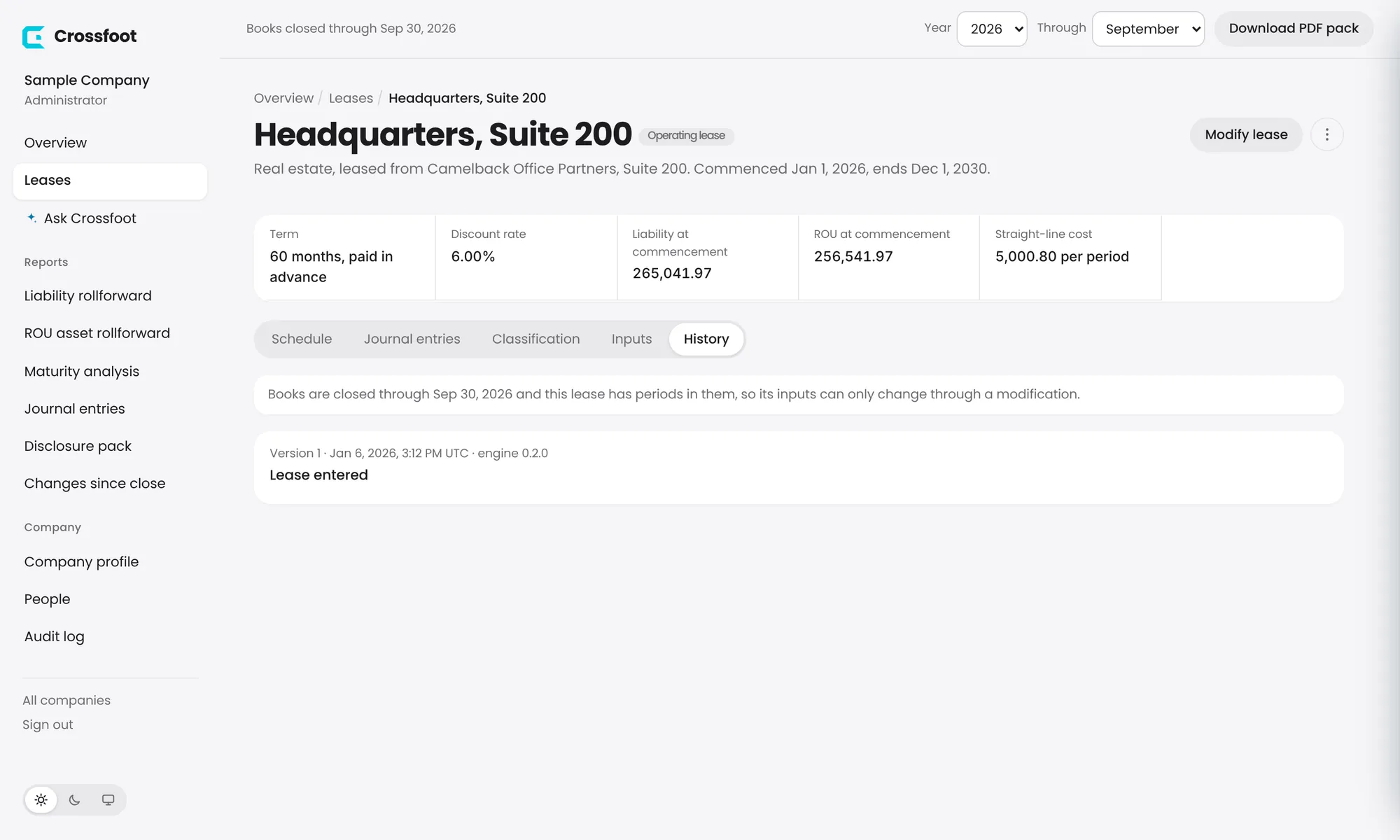
The top bar then shows Books closed through the date. A lease with periods in closed books can only change through a modification dated after the close; corrections, undos and deletes are locked.
A lease in closed books: the note explains that inputs can only change through a modification.
For administrators: unlock months to fix something, then close them again.
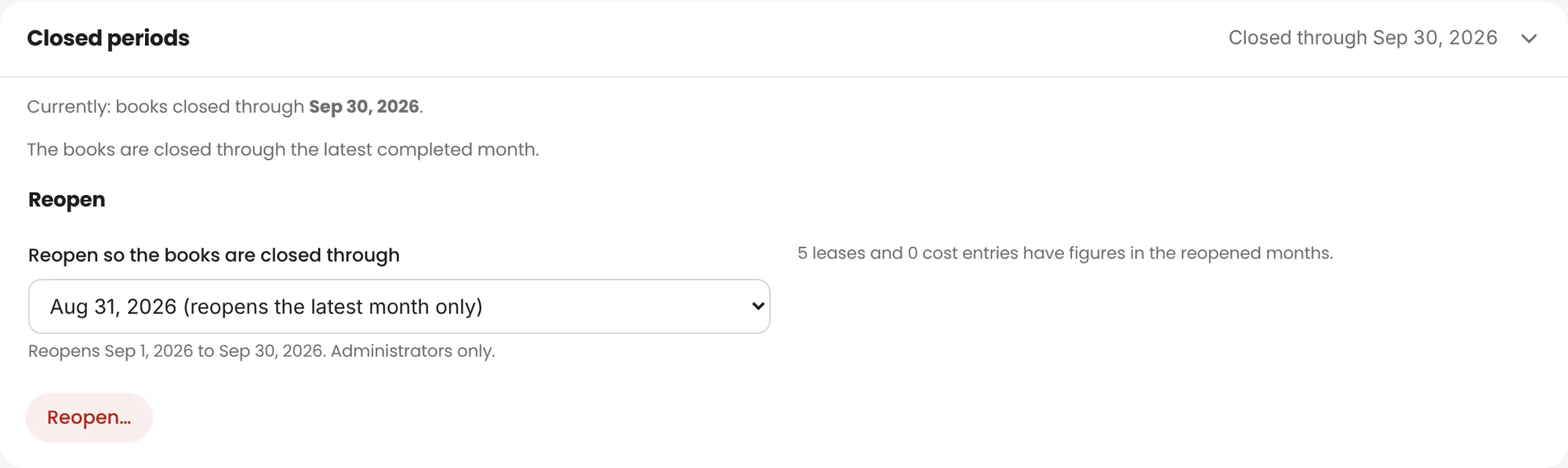
Open Company profile › Closed periods.
Under Reopen, choose how far back to reopen. By default only the latest closed month is reopened. Crossfoot shows how many leases and cost entries have figures in those months.
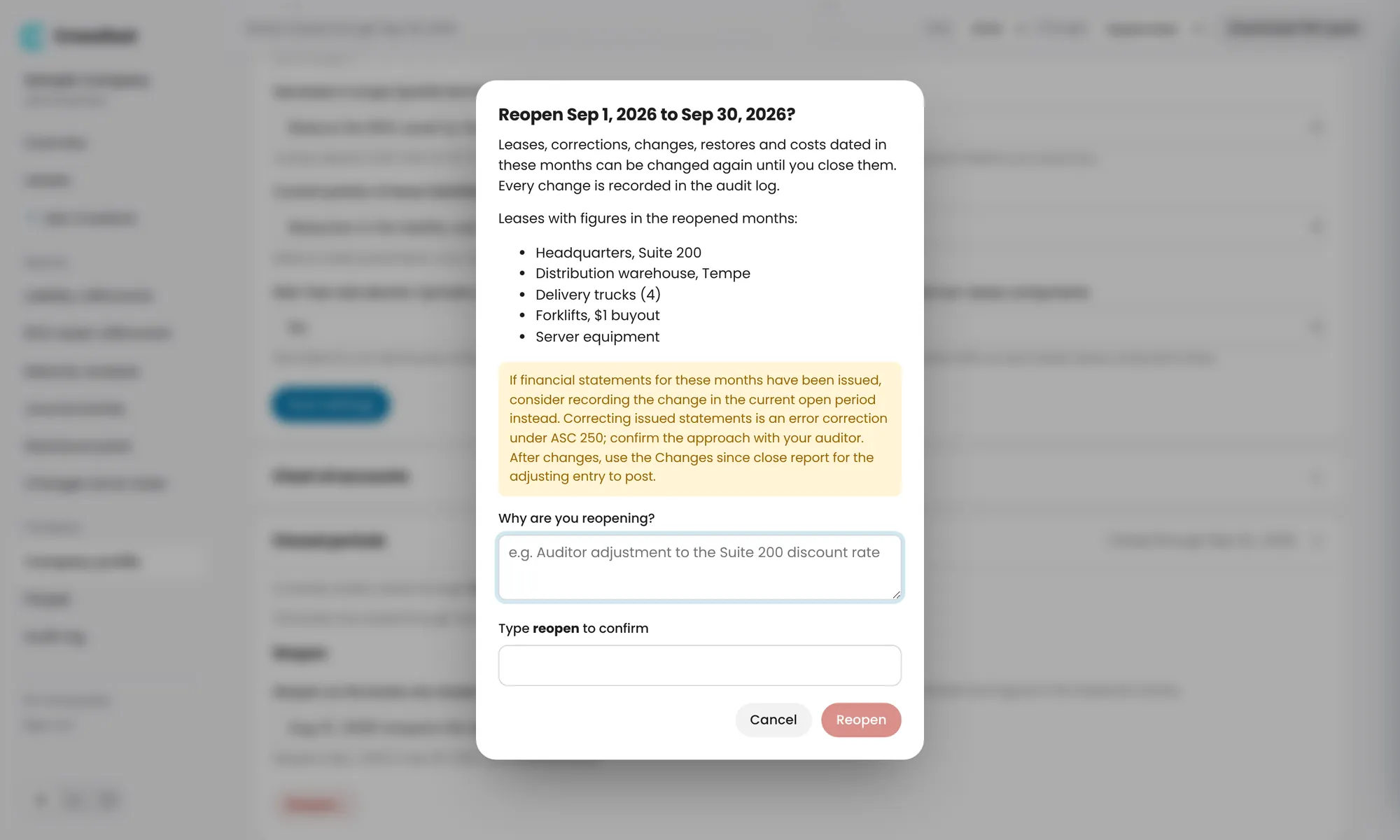
Choose Reopen…, say why, type reopen and confirm.
Make your changes. A banner on every page shows the books are reopened, with a link to Changes since close.
Choose Close again in the banner when you're done.
Reopen the latest month, or further back.Reopening asks for a reason and reminds you about issued financial statements.
TipIf statements for those months were already issued, consider recording the change in the current open period instead. Correcting issued statements is an error correction under ASC 250; confirm the approach with your auditor.
Recalculate every lease as it stood at the close and get the adjusting entry.
Changes since close recalculates every lease exactly as it stood when the books were closed and compares it with today, for everything dated on or before the closed-through date.
Choose Changes since close in the sidebar.
Pick the close to compare with. After you close again, a link offers the close made before the reopen, which shows everything changed while the books were open.
Review the leases that changed: what changed, by whom, and the liability and ROU asset then and now.
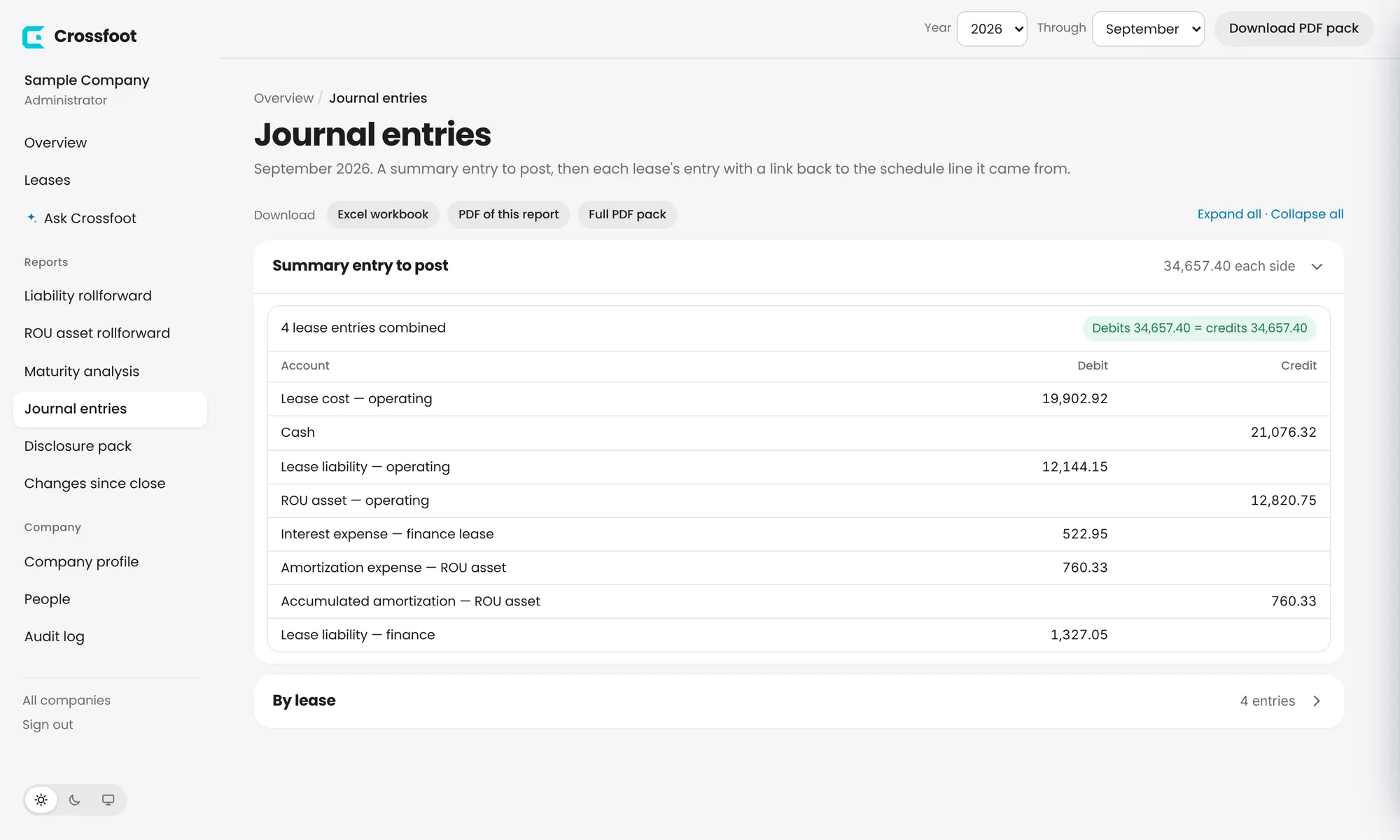
Post the Adjusting entry once, in the open period. It's grouped by fiscal year and balances.
If nothing affecting closed periods changed, the report says your ledger already matches.
Every change to leases, costs, closed periods, settings and access.
Choose Audit log in the sidebar to see every change in the company, newest first: who made it and when, in plain sentences. For example, "Reopened the books back to Jun 30, 2026 (they were closed through Sep 30, 2026)" or "Restored version 1 of Suite 200 (saved as version 3)".
Entries can't be edited or removed by anyone. Lease entries link to the lease's history.
An assistant for ASC 842 research and questions about your own leases.
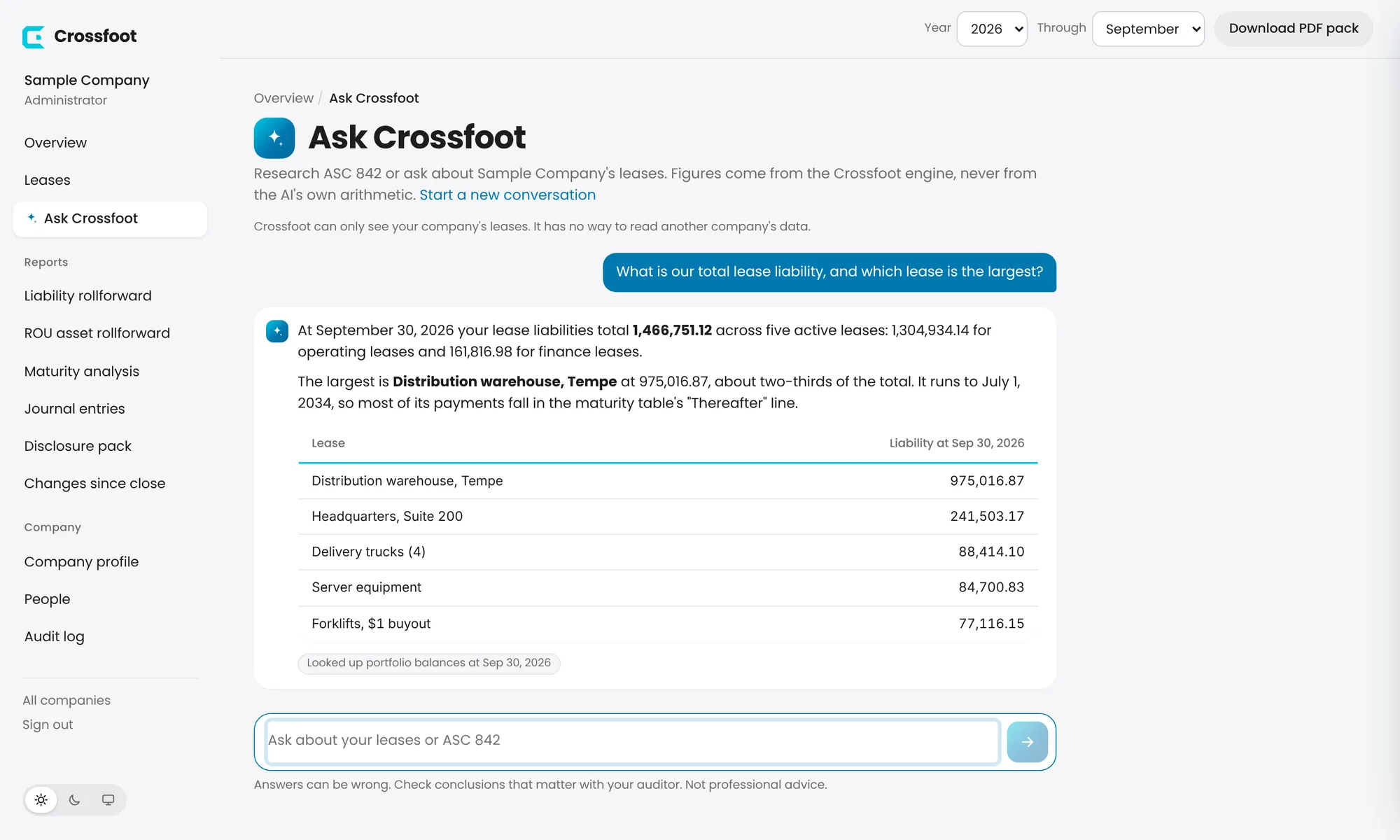
Ask in plain language about ASC 842 or about your own portfolio: why lease cost changed this month, what a renewal option does to the liability, which leases are finance leases and why.
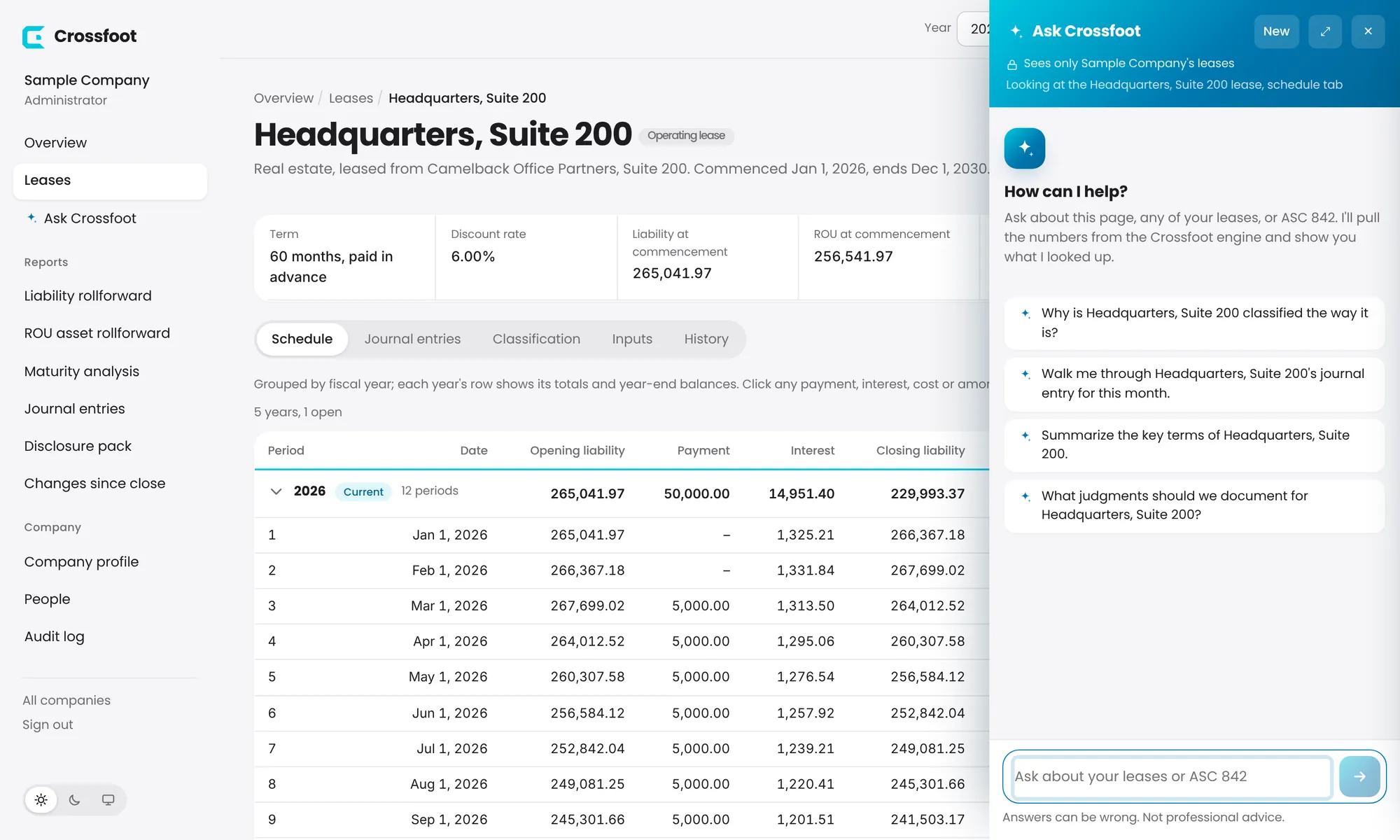
From any page: choose the Ask Crossfoot button at the bottom right. It knows which page you're on, and suggests questions about it.
Full page: choose Ask Crossfoot in the sidebar.
About a number: click a figure, then Ask Crossfoot about this number.
Every figure in an answer is looked up from your schedules, and the answer lists what it looked up.The assistant opened beside a lease, with suggested questions about it.
What it will and won't do
The numbers come from the Crossfoot engine, never from the AI's own arithmetic.
Research answers cite the ASC paragraph and separate what the standard requires from what's judgment.
It sees only the company you're in, and says so if you ask about anyone else's.
Answers can be wrong. Check conclusions that matter with your auditor; it isn't professional advice.
Each person can ask up to 100 questions and have up to 20 documents read in any 24 hours.
Administrators manage access in People. Enter an email address and a role, and Crossfoot sends an invitation. Until they sign in, they're listed under Waiting to sign in, where you can withdraw the invitation.
Role
Can
Administrator
Everything: settings, chart of accounts, people, closing and reopening periods, restoring earlier lease versions.
Preparer
Add, correct and modify leases, undo changes, and record short-term and variable costs.
Reviewer
View everything and close periods.
Viewer
View everything, including reports and exports. Can't change anything.
Owners and administrators of the organization have access to every company in it. Change someone's role, or choose No access to remove them, from the same page.
Switch the app's look from the bottom of the sidebar.
At the bottom of the sidebar is a three-way switch: Light, Dark and System, which follows your device's setting. Your choice is saved on that device. On a phone, the switch is at the bottom of each page.
Choose All companies at the bottom of the sidebar to see every company you have access to. Each company has its own leases, settings, chart of accounts, people and closed periods, and its data is walled off from every other company's, including from Ask Crossfoot.
To add a company, choose Add a company on the company list. To leave, choose Sign out.